
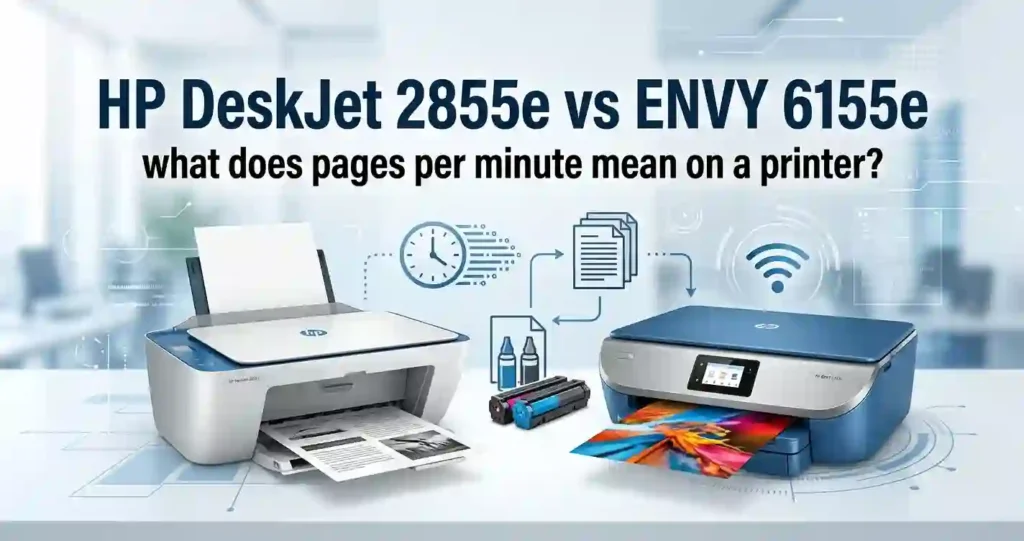
The DeskJet 2855e is the simple, budget-friendly option. It has basic buttons, a small 60-sheet tray, and manual two-sided printing. The ENVY 6155e adds a color touchscreen, automatic duplex, a 100-sheet tray, and borderless photo printing.
A student who prints a few essays a month can live happily with the DeskJet. A busy family or home office will save time with the ENVY. Neither one is built for heavy office work.
Not sure what kind of machine you need yet? Start with our guide on what type of printer you need for home use.
Prices, included ink, and subscription offers change by retailer. Check the final listing at Amazon, Best Buy, Staples, or Walmart before you buy.
Key Specifications Compared
Compare the specs that affect everyday use. New to terms like ppm or DPI? Our printer specifications explained for beginners guide helps.
| Feature | HP DeskJet 2855e | HP ENVY 6155e |
|---|---|---|
| Printer type | All-in-one inkjet | All-in-one inkjet |
| Printing | Color and black-and-white | Color and black-and-white |
| Functions | Print, scan, copy | Print, scan, copy |
| Automatic document feeder | No | No |
| Automatic duplex printing | No (manual only) | Yes |
| Control interface | Basic control buttons | Color touchscreen (2.4 inch) |
| Wireless printing | Wi-Fi (2.4 GHz) | Wi-Fi (dual-band) |
| Mobile printing | HP app and supported mobile printing | HP app and supported mobile printing |
| ISO print speed | Up to 7.5 ppm black, 5.5 ppm color | Up to 10 ppm black, 7 ppm color |
| Paper input tray | 60 sheets | 100 sheets |
| Borderless photo printing | No | Yes |
| Recommended monthly pages | 50 to 100 | 100 to 400 |
| Ink cartridge family | HP 67 | HP 68 |
| Best suited for | Basic, budget-conscious home printing | Home users wanting convenience and features |
Specs come from HP and major US retailers. Bundles differ, so confirm on the official HP page. A few store listings mention a document feeder for the DeskJet 2855e, but HP treats it as flatbed.
What Are the Biggest Differences?
Three upgrades define the ENVY 6155e:
- Automatic two-sided printing, so you never flip pages by hand
- A color touchscreen instead of basic buttons
- Faster rated speeds, plus a 100-sheet tray
The DeskJet 2855e keeps things basic. It has a simple control panel and a smaller 60-sheet input tray.
Neither model has an automatic document feeder. You place each page on the scanner glass one at a time. Also remember that the two printers use different ink cartridges, so you cannot swap them.
Design, Build Quality, and Ease of Use
Both printers are compact enough for a desk or shelf. Exact size and weight are on HP’s spec pages, so compare them with your space. Measure height too, because paper feeds from the back and needs headroom. Our guides on the best printer size for a small room and where to place a printer at home can help.
The DeskJet uses a simple button layout. It has fewer menus, so it is quick to learn. The ENVY has a color touchscreen. A few taps change paper size, copy count, or scan options.
Beginners and kids will find the DeskJet less confusing. Families who change print settings often will enjoy the ENVY screen.
Which Printer Is Easier to Set Up?
Both printers follow almost the same path, and the HP app guides each step.
- Unbox the printer, remove the tape, and plug it in.
- Install the starter cartridges.
- Load plain letter-size paper in the tray.
- Install the HP app and connect the printer to Wi-Fi.
- Print the alignment page when prompted.
Follow the on-screen or app instructions closely. Skipping a step is the top cause of setup errors. Both models also need a compatible device and a steady wireless network.
New to printers? Our first-time printer setup guide covers the basics. If your computer cannot find the machine, read how to install printer drivers correctly.
Print Speed and Everyday Performance
Always compare ISO print speeds. These are tested under standard conditions. Draft-mode numbers look bigger, but they trade quality for speed. For example, the DeskJet lists up to 20 ppm in black draft mode, yet its ISO rating is only 7.5 ppm.
Real speed changes with document complexity, quality settings, connection type, and color coverage. If your prints feel slow, see why inkjet printing is so slow.
For school assignments, recipes, shipping labels, and business forms, both printers cope well. The ENVY just finishes multi-page jobs sooner.
Which Printer Prints Faster?
The ENVY 6155e is faster on paper.
- DeskJet 2855e: up to 7.5 ppm in black and 5.5 ppm in color
- ENVY 6155e: up to 10 ppm in black and 7 ppm in color
These are rated maximums under standard conditions. They are not guaranteed speeds for every job.
PPM Explained Simply
PPM means pages per minute. It shows how many pages a printer can finish in one minute during testing. A 10 ppm printer could finish a 10-page report in roughly a minute. Real jobs run slower because the first page needs warm-up time. Learn more in our guide to what pages per minute means on a printer.
Better for Frequent Printing: DeskJet or ENVY?
HP suggests 50 to 100 pages a month for the DeskJet 2855e. For the ENVY 6155e, the range is 100 to 400 pages. If you print more than that, the ENVY is the safer pick.
More printing means more cartridge swaps, more paper, and higher costs. Our guide on how much printing a home printer should handle puts these numbers in context.
Printing hundreds or thousands of pages a month? Compare ink cartridge printers vs refillable tank printers and laser vs inkjet for everyday documents.
Duty Cycle vs Monthly Volume
Duty cycle is the most pages a printer can handle in a month without extra wear. One US retailer lists the ENVY 6155e at 1,000 pages. Recommended monthly volume is the smarter guide, since it shows the comfortable range. Staying inside that range helps your printer last. See how to choose a printer for your monthly print volume for more.
Print Quality: Text, Graphics, and Photos
Print quality depends on more than the printer. Paper type, print settings, image resolution, and ink condition all change the result. Compare black-text sharpness, color reproduction, graphics, and photos on paper that suits the job.
Do not treat advertised resolution as the full story. A bigger DPI number does not always mean a better print.
Understanding DPI
DPI means dots per inch. It counts how many tiny ink dots fit in one inch of paper. Both printers list up to 4800 x 1200 DPI in color and 1200 x 1200 DPI in black. They share a similar spec here, so printer resolution will not decide this match.
Best Printer for Documents: DeskJet or ENVY?
For schoolwork, invoices, forms, and letters, both printers deliver readable text. The DeskJet is fine for occasional documents. The ENVY suits people who print often and want a smoother routine.
The best test is simple. Print a few of your own typical pages if you can. Judge the text, not the resolution figure.
Photo Printing Compared: Which Model Looks Better?
The ENVY 6155e supports borderless printing. The DeskJet 2855e does not. That means the ENVY can print edge-to-edge snapshots, such as 4 x 6 inch photos, with no white frame.
Both work best with proper photo paper. Our guide to glossy vs matte photo paper helps you pick the right finish.
Casual family snapshots suit the ENVY. If you print photos weekly, a dedicated model is better. See our picks for the best photo printer for home use.
Automatic Duplex Printing and Paper Handling
Automatic duplex printing means the printer flips the page and prints both sides on its own. Manual duplex means you flip the pages yourself. The difference matters most for school reports and multi-page documents.
Both printers handle US letter paper, plus envelopes and photo paper. The ENVY also lists a wider range of sizes. Better paper habits protect both machines, so see what paper works best with inkjet printers.
Does the HP DeskJet 2855e Print Double-Sided?
Yes, but only manually. The driver lets you print one side, then you turn the pages over and feed them back in. The ENVY 6155e does this automatically.
Automatic duplex saves time and cuts paper use on long documents. For a one-page form, you will hardly notice.
Manual Two-Sided Steps
- Open the print dialog and choose manual two-sided printing.
- Print the first side of the pages.
- Follow the on-screen prompt to flip the stack.
- Reload the pages in the tray.
- Click continue to print the second side.
Paper Handling Compared: Tray Size and Convenience
The DeskJet has a 60-sheet input tray. The ENVY has a 100-sheet input tray. Both have a 25-sheet output tray, so printed pages can stack up fast on long jobs.
A bigger tray means fewer refills. Keep paper dry, flat, and neatly aligned to avoid jams. Our tips on how to store printer paper at home help.
Neither model suits high-volume office printing. Neither can scan a stack of pages on its own.
Scanning and Copying Features
Both printers have a flatbed scanner. You lift the lid, place one page on the glass, and scan or copy. This works well for homework, receipts, signed forms, and PDFs.
Copying a single page is easy. Copying a stack is slow, since you swap each sheet by hand.
Scanning Compared: Which Model Is Better?
Both models offer print, scan, and copy. Neither has an automatic document feeder, so multiple pages must be handled one by one.
If you scan stacks often, buy a printer with a document feeder. A dedicated document scanner is another option. Our list of the best multifunction printers for small offices shows models that do this well.
Wireless Connectivity and Mobile Printing
Both printers have built-in Wi-Fi, USB, and support for the HP app. You can print from Windows PCs, Macs, Chromebooks, iPhones, and Android phones. Features depend on your operating system and app version.
Common problems include router changes, weak signals, and printers showing as offline. If that happens, read why your printer keeps going offline and how to reconnect an offline printer.
Can You Print From a Smartphone?
Yes. Both printers work with the HP app for setup and supported print jobs. They also support Apple AirPrint on iPhones and compatible Android printing services.
For deeper help, read how to print from a phone at home and how to connect a printer to a smartphone.
Steps to Print From Your Phone
- Connect the printer to your home Wi-Fi.
- Connect your phone to the same network.
- Open the document or photo.
- Tap Share or Print and pick your printer.
- Choose copies and paper size, then tap Print.
Does the ENVY 6155e Have Better Wi-Fi?
Yes, on paper. The ENVY 6155e supports dual-band Wi-Fi. The DeskJet 2855e lists 2.4 GHz Wi-Fi only.
Dual-band support can improve compatibility with some home networks. Real-world reliability still depends on router placement, network congestion, and firmware. If setup fails, see why your printer won’t connect to Wi-Fi.
Ink Cartridges, Page Yield, and Running Costs
Each printer uses a different cartridge family. The DeskJet 2855e uses HP 67. The ENVY 6155e uses HP 68. Always check compatibility before you buy, and our guide on how to check if a printer cartridge is compatible shows how.
Color printing uses more ink than black text. Total cost of ownership also includes the printer price, paper, and upkeep. For a wider view, read about inkjet printer running costs.
| Cartridge | Fits | Estimated yield |
|---|---|---|
| HP 67 black | DeskJet 2855e | About 120 pages |
| HP 67XL black | DeskJet 2855e | About 240 pages |
| HP 67 tri-color | DeskJet 2855e | About 100 pages |
| HP 67XL tri-color | DeskJet 2855e | About 200 pages |
| HP 68 black | ENVY 6155e | About 160 pages |
| HP 68 tri-color | ENVY 6155e | About 120 pages |
| HP 68e EvoMore black | ENVY 6155e | About 320 pages |
Yields are HP-style estimates from standard tests. Your results will vary.
Cost Per Page: Which Printer Has Cheaper Ink?
A lower cartridge price does not always mean lower printing costs. Yield matters just as much. Calculate black and color cost per page separately.
Quick Cost Math
Divide the cartridge price by its page yield. A HP 67XL black cartridge around $35 and rated for 240 pages works out to roughly 15 cents a page. A standard HP 67 black at $23 to $31 for 120 pages lands near 19 to 26 cents. Run the same math with current HP 68 prices for the ENVY. For a full method, see how to calculate the true cost of owning a printer.
Cartridge Life: How Long Does Ink Last?
Cartridge life depends on page coverage, print habits, image-heavy documents, and maintenance cycles. Photos and graphics drain ink faster than plain text. Learn why in why inkjet printers use so much ink.
Advertised yields are estimates from standardized tests, not promises. Check how to check printer ink levels correctly so you are never surprised.
Spare cartridges age too. See how long unopened ink cartridges last and learn to store unused ink cartridges the right way. Printers that sit idle can also dry out, as explained in why an inkjet printer dries out.
Is HP Instant Ink Worth It?
HP Instant Ink is a subscription. You pay a monthly fee based on pages printed, not on ink used. HP mails new cartridges before you run out.
It can feel convenient, especially for steady printers. Buying cartridges as needed gives you more flexibility. Before you enroll, check current US plan terms, eligibility, cancellation rules, and any HP+ requirements.
Also know that some HP printers may refuse certain third-party cartridges. Read why a printer rejects new cartridges and compare original vs compatible printer cartridges. For savings ideas, see why printer ink costs so much and how to save money.
Price and Overall Value for Money
Compare current retail prices, promotions, included setup cartridges, and warranty terms. The cheapest printer upfront may cost more over several years. Our article on why cheap printers can cost more over time explains the trap.
In recent US listings, the ENVY 6155e carried a list price of $159.99 at Office Depot and B&H, with sales near $100. The DeskJet 2855e is usually priced well below that. Check warranty details too, using our printer warranty terms explained for beginners.
Ask one question: do the extra ENVY features match how you print? Our guide to what printer features actually matter can help you decide.
Is the HP DeskJet 2855e Worth Buying?
It is worth buying for occasional home printing, basic schoolwork, forms, and everyday documents. offers a straightforward set of features. It also has the lower recommended monthly page volume.
Spend more if you want automatic duplex printing and a touchscreen. If low price is your top goal, browse the best affordable all-in-one printers.
Worth the Extra Cost? The HP ENVY 6155e Explained
The ENVY adds automatic two-sided printing, faster rated speeds, borderless photos, and a color touchscreen. Families, students, and frequent home printers get the most from it.
Compare the price gap with your expected ink costs and the value of time saved. Our list of printer features worth paying extra for is a useful check. You can also see the best home printers with cheap running costs.
HP DeskJet 2855e vs ENVY 6155e: Pros and Cons
Here is a quick look at the good and the bad of each printer.
DeskJet 2855e Pros and Cons
Pros
- Simple controls
- Compact design
- Basic print, scan, and copy functions
Cons
- Slower rated print speeds
- Manual duplex printing
- Smaller paper tray
- No borderless printing
These strengths matter most to buyers who value basic function over convenience.
ENVY 6155e Pros and Cons
Pros
- Faster rated printing
- Automatic duplex printing
- Color touchscreen
- Borderless photo printing
Cons
- Higher potential upfront cost
- Cartridge-based running expenses
- No automatic document feeder
The extra features pay off only if you will use them regularly.
Final Verdict: Which Printer Should You Buy?
Match your choice to print volume, budget, photo needs, and how much you value automatic duplex. Both models are home inkjet all-in-ones, not high-volume office machines. Here is a snapshot that points you to the right one.
| Your situation | Better pick |
|---|---|
| Print under 100 pages a month | DeskJet 2855e |
| Print 100 to 400 pages a month | ENVY 6155e |
| Want automatic two-sided printing | ENVY 6155e |
| Need borderless photos | ENVY 6155e |
| Want the lowest upfront price | DeskJet 2855e |
| Need to scan stacks of pages | Neither (look for a document feeder) |
Looking for more options? Browse the best printer for family use and the best inkjet printer for students.
Choose the HP DeskJet 2855e If…
- You need an affordable, straightforward printer for occasional documents and basic home tasks.
- You rarely print double-sided pages and do not need borderless photos.
- You are comfortable manually turning pages for two-sided prints.
Choose the HP ENVY 6155e If…
- You want automatic duplex printing and a color touchscreen.
- You print more often and value faster rated speeds and a larger paper tray.
- You want borderless photo printing alongside everyday documents.
Should You Consider Another Printer Instead?
Sometimes neither model is right. Here is when to look elsewhere:
- Lots of color pages: compare refillable ink systems for home printing.
- Mostly black-and-white documents: a monochrome laser can be cheaper per page. See the best laser printer for a home office.
- Frequent multi-page scanning: pick an all-in-one with a document feeder.
Not sure whether you need color at all? Read how to choose between color and monochrome printing.
How to Set Up and Maintain Either Printer
Good habits keep both printers healthy. Set up the printer, install the cartridges, load paper, and connect it to Wi-Fi. Then follow HP’s routine maintenance steps.
- Check ink levels now and then.
- Wipe the outside with a dry, lint-free cloth.
- Print a page every week or two so ink does not dry out. See how often an inkjet printer should be used.
Common troubles include paper jams, faded prints, offline status, and failed wireless connections. Our guide to common home printer problems covers fixes. For specific faults, read about blank pages from an inkjet printer and lines on inkjet prints.
How to Connect the Printer to Wi-Fi
- Install the HP app on your phone or computer.
- Power on the printer and open the app’s guided setup.
- Pick your home network and enter the password.
- Confirm the printer shows as connected.
- Check that your phone or computer can find it.
If setup fails, check the network band, signal strength, router settings, and printer firmware. Remember the DeskJet 2855e needs a 2.4 GHz network. For more help, see how to connect a printer to Wi-Fi.
Ways to Reduce Ink and Paper Waste
- Use draft or economy mode for internal documents.
- Print multiple pages per sheet, or use automatic duplex on the ENVY.
- Preview before you print.
- Compare cartridge prices before you buy replacements.
For more ideas, read how to reduce ink usage when printing and how to reduce home printing costs.
Frequently Asked Questions
Here are quick answers to the questions buyers ask most.
1. What Is the Main Difference Between the HP DeskJet 2855e and ENVY 6155e?
The ENVY 6155e offers automatic duplex printing, a color touchscreen, faster rated speeds, and borderless printing. The DeskJet 2855e is a more basic model for lighter home printing.
2. Better Overall: ENVY 6155e or DeskJet 2855e?
The ENVY is generally more convenient for frequent printing and extra features. The DeskJet may be enough for occasional, budget-minded home printing.
3. Faster Printing: DeskJet or ENVY?
The ENVY is faster. The DeskJet 2855e is rated at up to 7.5 ppm black and 5.5 ppm color. The ENVY 6155e is rated at up to 10 ppm black and 7 ppm color.
4. Duplex Printing: Does the DeskJet 2855e Have It?
No. It supports manual two-sided printing through the printer driver. The ENVY 6155e prints on both sides automatically.
5. Can Both Printers Print From an iPhone or Android Phone?
Yes. Both support compatible mobile printing, including the HP app. Features depend on your phone, operating system, app, and network.
6. Printing Photos: Which Printer Is Better?
The ENVY 6155e is better for borderless photos. The DeskJet 2855e can print color images but does not support borderless printing.
7. Lower Ink Costs: Which Printer Wins?
It depends on cartridge prices, page yields, print volume, and color coverage. Compare cost per page with current prices instead of judging by printer price alone.
8. Do These Printers Have an Automatic Document Feeder?
No. Both use a flatbed scanner, so you place each page by hand. Choose an all-in-one with a document feeder if you scan many pages.
9. Are the DeskJet 2855e and ENVY 6155e Good for Home Offices?
Both handle forms, letters, and basic documents. The ENVY fits better if you want automatic duplex and a higher monthly page range. Printer lifespan matters here too, so see how long an inkjet printer usually lasts.
10. Students and Families: Which Printer Should They Choose?
The DeskJet suits occasional assignments and basic printing. The ENVY fits frequent schoolwork, multi-page reports, and photo projects. For more ideas, see our best home printer for school projects guide.
Conclusion: DeskJet 2855e vs ENVY 6155e
The main trade-off is clear. The DeskJet 2855e gives you basic affordability and simplicity. The ENVY 6155e gives you more convenience and extra printing features.
Pick the DeskJet 2855e for light home use. Pick the ENVY 6155e if you value automatic duplex, faster rated speeds, and borderless photos.
Before you buy, check current US pricing, cartridge availability, and HP’s official specifications. That final check keeps you from paying for features you will not use.




