
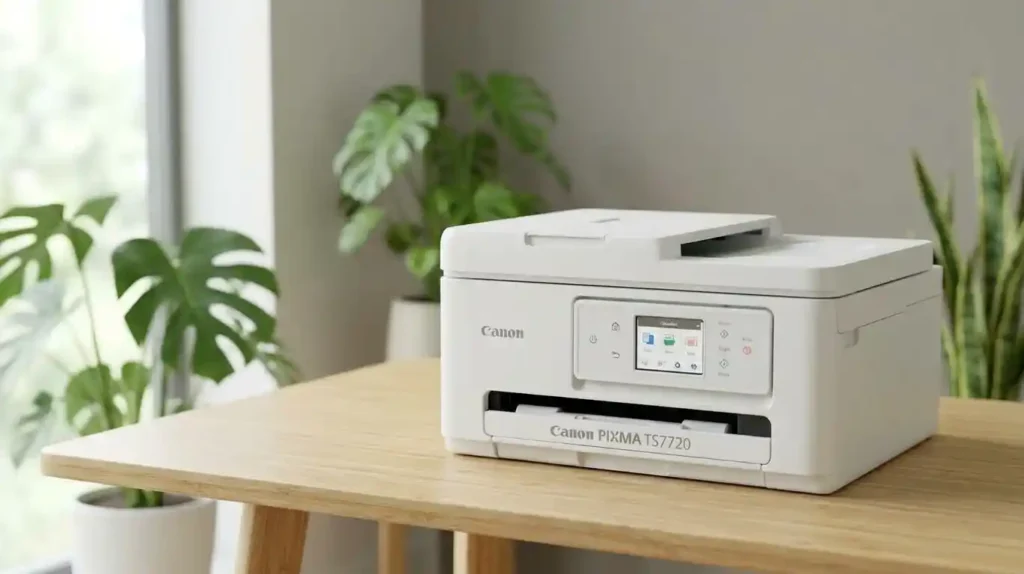
Want a home printer that handles homework, a signed form, and a few photos without a headache? The Canon PIXMA TS7720 is built for that kind of everyday life. It is a wireless all-in-one inkjet printer that prints, scans, and copies.
Buyers tend to weigh the same few things. They want good print resolution, easy wireless printing, flexible paper handling, fair cartridge costs, and simple setup. This guide covers each one in plain English.
I used Canon’s published specs and current US retailer listings from October 2026. Prices and stock change often, so check final numbers before you buy.
Here is the short answer. The TS7720 fits light to moderate home use, especially color documents, school projects, and casual photos. It is a weaker fit if you print hundreds of text pages every month. If you are new to buying printers, start with our guide on how to choose a printer for the first time.
What Is the Canon PIXMA TS7720?
The TS7720 is a multifunction printer. One compact machine prints, scans, and copies. It uses Canon’s FINE inkjet technology with two cartridges: a pigment black and a tri-color.
New to the tech? Our explainer on how inkjet printers work shows what happens inside the machine.
Typical users include:
- Families who print recipes, forms, and school work
- Students who need reports and posters
- Home offices with light paperwork
- Casual photo fans who print snapshots now and then
An all-in-one inkjet differs from other printers in a few ways. A dedicated photo printer focuses on image quality and often uses more ink colors. A monochrome laser printer prints fast, sharp black text at a low cost per page, but it has no color. Our guide to laser printer vs inkjet for everyday documents explains that trade-off.
The TS7720 sits in the middle. It does many jobs well and does not specialize in any one.
Key Features at a Glance
Here are the core features, based on Canon’s listing:
- Print technology: Canon FINE inkjet with pigment black plus color ink
- Connections: Wi-Fi on 2.4 GHz and 5 GHz, Wi-Fi Direct, and Hi-Speed USB
- Display: 2.7-inch color touchscreen
- Paper handling: 100-sheet front cassette plus 100-sheet rear tray
- Extras: Automatic two-sided printing, quiet mode, and a user-replaceable maintenance cartridge
Canon’s speed numbers come from lab tests. Real results depend on your file, paper, and quality setting. For help reading any spec sheet, see printer specifications explained for beginners.
Printer Terms in Plain English
Spec sheets use a lot of jargon. These four terms matter most for the TS7720.
Pages Per Minute (PPM) and IPM
PPM counts how many pages a printer finishes in one minute. Canon uses ipm, or images per minute, which works the same way but follows a standard test. The TS7720 is rated up to 15 ipm in black and 10 ipm in color. Our guide on what pages per minute means on a printer goes deeper.
Dots Per Inch (DPI)
DPI tells you how many tiny ink dots fit in one inch. The TS7720 prints up to 1200 x 1200 dpi in color. A higher number can mean finer detail, but paper and settings matter just as much. Read printer resolution explained in simple terms for more.
Duty Cycle
Duty cycle is the most pages a printer can handle in a month without extra wear. I did not find a monthly duty cycle in the TS7720 specs I reviewed. Treat it as a home printer and see how much printing a home printer should handle. Offices can compare it with how many pages an office printer can handle monthly.
Wi-Fi vs Wi-Fi Direct
- Wi-Fi connects the printer through your home router.
- Wi-Fi Direct lets a phone talk to the printer without a router. The TS7720 supports both, plus dual-band 2.4 GHz and 5 GHz networks.
Canon PIXMA TS7720 Specifications
This table gives you a quick view of the hardware, connections, and everyday usability. The figures come from Canon and major US retailers. Confirm them again before you buy, and do not mix them up with similar PIXMA models.
| Specification | Details |
|---|---|
| Printer type | All-in-one color inkjet (pigment black plus color ink) |
| Functions | Print, scan, and copy |
| Connectivity | Wi-Fi (2.4 GHz and 5 GHz), Wi-Fi Direct, and USB. No Ethernet port is listed |
| Mobile printing | Apple AirPrint, Mopria Print Service, Canon PRINT app, and Canon Print Service for Android |
| Print quality | Up to 1200 x 1200 dpi color. Borderless photos up to 8.5 x 11 inches |
| Print speed | Up to 15 ipm black and 10 ipm color. First page in about 9 seconds (black) or 11 seconds (color) |
| Paper handling | 100-sheet cassette plus 100-sheet rear tray. Letter and Legal sizes. Automatic duplex |
| Media weight | Plain paper 64 to 105 g/m2. Canon photo paper up to 265 g/m2 |
| Ink system | PG-285 black and CL-286 color. XL versions are PG-285XL and CL-286XL |
| Display | 2.7-inch color touchscreen |
| Scanner | Flatbed, 1200 x 2400 dpi optical resolution. No automatic document feeder listed |
| Copying | Up to 7 ipm, with zoom from 25% to 400% |
| Weight | About 13.8 lb |
| Warranty | One-year limited warranty in the US |
| Best suited for | Home, student, and light-duty office printing |
Typical US Pricing and Retailers
Canon lists the TS7720 under part number 6256C002. List price runs near $162. When I checked, Best Buy showed it at $115.99 with a 4.4 out of 5 rating from 511 reviews, and Office Depot showed $119.99 on sale. Staples listings have shown prices from about $85 to $100.
Sales come and go, so watch for deals. Our guide on how much you should spend on a printer helps you set a budget. You can also compare it with our picks for the best affordable all-in-one printer.
Canon PIXMA TS7720 Print Quality and Performance
The TS7720 uses pigment black ink for text and dye-based color ink for graphics. Pigment black helps text look sharp on plain paper. Dye color helps images look bright and smooth.
Print speed varies. A one-page text file prints quickly. A document full of photos or heavy graphics takes longer, because the printer lays down more ink. Your quality setting changes speed too.
Borderless printing works up to Letter size, so photos can reach the paper edges. Fine details and color gradients look best on photo paper with the right paper type selected in the print menu.
Is the Canon PIXMA TS7720 Good for Photos?
Yes, for casual use. It uses four inks, which is enough for family pictures, crafts, and school projects. Photo-focused printers add more ink colors for smoother shading, so serious photographers should look elsewhere.
Glossy photo paper with the matching setting gives the best result. Our guide on glossy vs matte photo paper helps you pick a finish. For better results at home, follow our tips to print professional-looking photos at home. If photos are your main goal, see the best photo printer for home use.
Is It Good for Everyday Document Printing?
Yes. It handles homework, forms, reports, recipes, and the occasional business letter. Black text looks crisp, and automatic duplex helps with longer files.
Quality modes change speed and ink use:
- Draft: fastest, lightest ink use, best for personal copies
- Standard: the best balance for most jobs
- High: slowest, uses the most ink, best for photos
If you mostly print large volumes of plain text, a laser printer may suit you better.
Real-World Example: A Busy School Week
Picture a family of four. Over one week they print 25 pages of homework, one color poster, a permission slip to scan, and six snapshots. That is light to moderate use, and the TS7720 handles it easily.
Now picture a home business printing 400 invoices a month. The ink bill would climb fast. Kids’ projects are a great fit, so see our tips on printing children’s school projects at home and our list of the best home printer for school projects.
Canon PIXMA TS7720 Ink Cartridges and Running Costs
The TS7720 uses two cartridges. Canon lists the PG-285 for black and the CL-286 for color. Higher-capacity PG-285XL and CL-286XL versions fit the same slots.
Page yield is the number of pages one cartridge can print. It is rated at about 5% page coverage, which is light text. Photos and graphics use far more ink, so your yield will be lower.
| Cartridge | Type | Approx. yield | Ink volume |
|---|---|---|---|
| PG-285 | Standard black | About 200 pages | 7.3 ml |
| CL-286 | Standard color | About 180 pages | 9.9 ml |
| PG-285XL | High-capacity black | About 400 pages | 12.7 ml |
| CL-286XL | High-capacity color | About 400 pages | 17.6 ml |
Yields vary a little between retailers, so treat them as estimates. Some listings call this printer refillable, but Canon’s specs list cartridges, so plan for cartridge costs. Our guide to inkjet printer running costs shows the full picture.
How Much Does It Cost to Print With the TS7720?
Your cost depends on the cartridge you buy and what you print. Black text costs less than color pages and photos.
Cost-Per-Page Formula
Divide the cartridge price by its page yield. A $50 cartridge that prints 400 pages costs 12.5 cents per page. Paper adds more, since a 500-sheet ream often costs $6 to $10 at US stores, or one to two cents per sheet.
Sample Math for XL Cartridges
A genuine XL pair has cost about $100 to $115 online, or roughly $50 to $58 per cartridge. At 400 pages each, that works out to about 12.5 to 14 cents per black page. Color pages cost more, because they use the color cartridge too.
| Pages per month | Estimated ink cost |
|---|---|
| 50 | About $6 to $7 |
| 100 | About $13 to $14 |
| 300 | About $38 to $42 |
Do not forget other costs. The maintenance cartridge needs replacing eventually, and cleaning cycles use a little ink. For a full formula, read how to calculate the true cost of owning a printer. Curious why numbers feel high? See why inkjet printers use so much ink.
How to Reduce Canon PIXMA TS7720 Ink Usage
Small habits save real money:
- Use draft or economy mode when quality is not critical
- Preview documents and print only the pages you need
- Pick the correct paper type so the printer does not overspray
- Follow Canon’s maintenance advice and avoid repeat cleaning cycles
- Check ink levels before big jobs
Our guides on reducing ink usage when printing and reducing home printing costs offer more ideas. Learn how to check printer ink levels correctly too.
Genuine, Compatible, and Print Plan Options
You have three paths. Genuine Canon ink gives the most predictable results. Compatible or remanufactured ink costs less, but quality and yield can vary. Canon PIXMA Print Plan is a subscription that ships ink when you run low, and Canon claims big savings, so read the plan terms first.
Weigh the options in our guides on original vs compatible printer cartridges and genuine vs compatible ink. Before you order, learn how to check if a printer cartridge is compatible.
Canon PIXMA TS7720 Connectivity and Wireless Printing
The TS7720 connects over Wi-Fi, Wi-Fi Direct, or USB. Wireless printing needs the printer and your device on the same network. Dual-band support means you can use 2.4 GHz for range or 5 GHz for speed.
Canon supports AirPrint, Mopria, and the Canon PRINT app. Common problems include router changes, weak signals, and wrong passwords. Our guide on why a printer will not connect to Wi-Fi covers the usual suspects.
How to Connect the Canon PIXMA TS7720 to Wi-Fi
- Plug in the printer and turn it on. Wait for the home screen.
- Open the wireless or network setup menu on the touchscreen.
- Select your Wi-Fi network name from the list.
- Enter the password with the on-screen keyboard. It is case sensitive.
- Wait for the printer to confirm the connection.
- Install the Canon PRINT app or Canon’s software and add the printer.
Make sure your phone or computer uses the same network. Menu labels can change between software versions, so check Canon’s official setup guide for exact wording. For general help, see how to connect a printer to Wi-Fi and how to set up a printer for the first time.
How to Print From a Phone or Laptop
Printing methods depend on your device. Always check operating system compatibility, and confirm the device has network permission. Our guides on printing from a phone at home and connecting a printer to a smartphone add more detail.
iPhone and iPad
Use AirPrint. Open a photo or document, tap Share, then tap Print and choose the TS7720. No driver is needed, but both devices must share one network.
Android Phones
Use the Canon PRINT app, Canon Print Service, or Mopria. Add the printer once, then print from any supported app.
Windows and Mac
Download the driver from Canon’s support page, then add the printer in system settings. Our guide on installing printer drivers correctly walks through it. For laptops, see how to connect a printer to a laptop. If the printer does not appear, read printer not showing on computer.
Canon PIXMA TS7720 Paper Handling and Duplex Printing
The TS7720 has two paper sources. The front cassette holds 100 sheets of plain paper. The rear tray holds another 100 sheets and suits photo paper and specialty media. Canon lists Letter and Legal sizes.
Automatic duplex printing prints on both sides without you flipping the page. It cuts paper use and works well for reports and school assignments. Check Canon’s manual for the paper sizes that qualify.
Avoid jams with a few habits:
- Do not overload the tray
- Align the paper guides snugly
- Fan the stack before loading
- Keep paper flat and dry, as in how to store printer paper at home
What Paper Works Best With the Canon PIXMA TS7720?
For daily documents, use standard plain paper. Canon lists plain paper from 64 to 105 g/m2 for the rear tray. For images, use Canon photo paper, which can reach 265 g/m2.
Paper weight, finish, and size affect feeding and print quality. Heavy paper can jam in the wrong tray. Before buying specialty paper, check the supported media list in the manual. See what paper works best with inkjet printers and printer paper types for creative projects for ideas.
Canon PIXMA TS7720 Scanning and Copying Features
The built-in flatbed scanner digitizes receipts, schoolwork, forms, and household papers. Its optical resolution is 1200 x 2400 dpi. You can save scans to a computer, attach them to email, or build a multi-page PDF.
Copying runs up to 7 ipm. It offers borderless copy, fit-to-page, and zoom from 25% to 400%. You place each page on the glass by hand, because no automatic document feeder is listed.
That limit matters for big stacks. Office-focused machines scan whole piles at once. Our guide on all-in-one printer vs printer only can help you decide if the extra features are worth it.
Is the TS7720 Suitable for a Home Office?
For light paperwork, yes. Occasional scanning, basic color printing, and quick copies are all fine.
It has limits for busier setups:
- No automatic document feeder for multi-page scans
- No fax function listed
- No Ethernet port listed, only Wi-Fi and USB
- A modest 200-sheet total capacity for a shared office
If you need those features, look at the best multifunction printer for small offices. You can also read how to choose a printer for a small office.
Canon PIXMA TS7720 Pros and Cons
The TS7720 has real strengths, and it has trade-offs too. This table presents both so you can match the printer to your needs. The points come from published specs and retailer feedback, so your results may vary.
| Potential advantages | Potential drawbacks |
|---|---|
| Print, scan, and copy in one device | Ink replacement can add to ownership costs |
| Color printing for home projects | May not suit high-volume office printing |
| Wi-Fi, Wi-Fi Direct, and AirPrint workflows | Network setup may require troubleshooting |
| Two paper sources and automatic duplex | No document feeder, fax, or Ethernet port listed |
| Suitable for everyday home tasks | Features may be excessive for basic black-text printing |
Inkjets also dry out if they sit unused. For a balanced view of the technology, read the inkjet printer advantages and disadvantages. You can also check how long an inkjet printer usually lasts.
Canon PIXMA TS7720 vs. Other Printer Types
Before choosing, compare more than the sticker price. This table shows which printer category may offer the best value for different printing habits.
| Printer category | Best for | Main consideration |
|---|---|---|
| Canon PIXMA TS7720 | Everyday home and color printing | Cartridge replacement costs |
| Refillable ink-tank printer | Frequent color printing | Higher initial cost on some models |
| Monochrome laser printer | Text-heavy documents | No color printing |
| Dedicated photo printer | Photo-focused projects | Specialized media and ink expenses |
Cartridge inkjets, ink-tank models, and lasers each handle workloads differently. Our guide on ink cartridge printer vs refillable tank compares costs and upkeep.
Is the Canon PIXMA TS7720 Better Than an Ink-Tank Printer?
It depends on how much you print. The TS7720 costs less upfront and suits occasional use. Ink-tank printers usually cost more to buy, but their refill bottles cost far less per page.
Occasional users often prefer the convenience of cartridges. Frequent printers may save money with a tank model. Count your monthly pages first, then see the best refillable inkjet printer for families.
What Should You Compare Before Buying?
Use this checklist:
- Wireless features and mobile support
- Print quality and photo needs
- Paper capacity and duplex printing
- Scanning needs, such as a document feeder
- Compatible ink prices and independently verified yields
- Warranty terms, return policies, and current prices at Amazon, Best Buy, and Staples
Warranty rules differ, so read printer warranty terms explained for beginners first.
Similar Canon and HP Models Worth a Look
Shopping around is smart. Compare the Canon TS4320 vs TS6520 for ink costs and value. Budget buyers can read the HP DeskJet 2855e vs Canon PIXMA TS4320 comparison. You can also see how the HP DeskJet 2955 stacks up against the Canon PIXMA TR4720.
Common Canon PIXMA TS7720 Problems and Troubleshooting
Inkjets share a few common issues: offline status, Wi-Fi failures, blank pages, streaks, and paper jams. Start by reading the message on the touchscreen. Then follow Canon’s model-specific support steps.
Routine care prevents many headaches. Print something every week or two, keep the lid closed, and use safe steps before you call for service. Our guide on common inkjet printer problems and their causes gives a wider view.
Canon PIXMA TS7720 Not Connecting to Wi-Fi
Try these fixes in order:
- Check the network password and signal strength.
- Move the printer closer to the router.
- Restart the printer and the router.
- Check whether you changed the router name or password recently.
- Repeat the official wireless setup.
Dual-band routers sometimes confuse setup, so try the 2.4 GHz network if 5 GHz fails. More tips are in why a printer will not connect to Wi-Fi.
Canon PIXMA TS7720 Printing Blank Pages
Check these first:
- Ink levels and any warnings on the display
- Cartridge installation, including removing protective tape from new cartridges
- Print settings and paper type
Then print a nozzle check pattern. If lines are missing, run one cleaning cycle. Avoid repeat cycles, because they waste ink. See why an inkjet printer prints blank pages, and contact Canon if the problem persists.
Canon PIXMA TS7720 Printing Slowly or Showing Offline
Slow printing often comes from high quality settings, large files, or a weak Wi-Fi link. Clear any stuck print jobs and confirm the right printer is selected. Our guide on why inkjet printing is so slow explains the causes.
The printer may also look offline when it has powered down. Canon lists an Auto Power On/Off feature, so check that setting. For more steps, read why a printer keeps going offline and how to reconnect an offline printer. Restart the device first, then reinstall the driver only if needed.
Streaks, Lines, and Dry Nozzles
Streaks usually mean clogged nozzles. Run a nozzle check, then one cleaning cycle. Learn why inkjet prints have lines and why an inkjet printer dries out.
Use the printer regularly to prevent this. Our guide on how often an inkjet printer should be used offers a simple routine.
Who Should Buy the Canon PIXMA TS7720?
The TS7720 suits people who want one convenient home machine. It works well for color documents, occasional photos, schoolwork, and scanning. Compact size and a simple touchscreen make it easy to live with.
Heavy printers should do the math first. Check cost per page and your monthly volume before you commit. A simpler printer may be better for a few pages a week, while a higher-capacity office model suits busy households.
Students and families can also see the best inkjet printer for students and the best printer for family use.
Who Should Consider an Alternative?
- Text-heavy users may prefer a monochrome laser. See the best laser printer for a home office.
- Frequent color printers should compare refillable ink-tank models and their long-term costs.
- Professional photographers should look at specialized photo printers.
- Busy offices need business-focused document handling. See the best printer for high-volume office printing.
Featured Snippet Optimization: Quick Answers
Short answers for quick questions.
What Is the Canon PIXMA TS7720?
The Canon PIXMA TS7720 is a wireless color inkjet all-in-one printer that prints, scans, and copies. Whether it suits you depends on your document volume, photo needs, connection needs, and ink budget.
Is the Canon PIXMA TS7720 Worth Buying?
It can be, for everyday home tasks like homework, forms, and casual photos. Compare current prices, ink costs, and competing models before you decide.
How Can You Get Better Print Quality?
- Select the correct paper type and quality setting for each job.
- Check ink levels and run a nozzle check if prints show gaps or streaks.
- Use compatible media and follow Canon’s maintenance steps.
Frequently Asked Questions (FAQ)
1. Is the Canon PIXMA TS7720 a good printer for home use?
Yes. It handles everyday documents, color printing, scanning, and casual photos. Your monthly workload and ink costs should guide the final decision.
2. Does the Canon PIXMA TS7720 support wireless printing?
Yes. It supports Wi-Fi on 2.4 GHz and 5 GHz, plus Wi-Fi Direct, AirPrint, and Mopria. Your device must share the same network, so follow Canon’s setup instructions.
3. Can the Canon PIXMA TS7720 print photos?
Yes, up to 8.5 x 11 inches borderless. Results depend on image resolution, paper, and settings. Glossy photo paper with the right setting gives the best look.
4. Which ink cartridges does the Canon PIXMA TS7720 use?
It uses the PG-285 black and CL-286 color cartridges. The XL versions, PG-285XL and CL-286XL, last longer. Check the model number printed on your cartridge before buying.
5. Does the Canon PIXMA TS7720 print double-sided automatically?
Yes, Canon lists automatic two-sided printing. It saves paper for reports and school assignments. Check the manual for the supported paper sizes.
6. Can I print from my iPhone or Android phone?
Yes. iPhones and iPads use AirPrint. Android phones use the Canon PRINT app, Canon Print Service, or Mopria. Both need the same network as the printer.
7. Why is my Canon PIXMA TS7720 not connecting to Wi-Fi?
Common causes are a wrong password, a weak signal, or a changed router name. Restart both devices and repeat the official wireless setup.
8. Why is my Canon PIXMA TS7720 printing blank pages?
Low ink, unremoved tape on new cartridges, or clogged nozzles are likely. Run a nozzle check, then one cleaning cycle if needed.
9. Is the Canon PIXMA TS7720 expensive to maintain?
It depends on your volume. An XL cartridge pair has cost about $100 to $115, which works out to roughly 12.5 to 14 cents per black page. Use current US prices to calculate your own cost per page.
10. Is the Canon PIXMA TS7720 suitable for a small business?
It fits light-duty office printing and occasional scanning. For heavy workloads, document feeders, or fax, choose a business-focused printer.
Conclusion: Is the Canon PIXMA TS7720 Right for You?
The Canon PIXMA TS7720 is a friendly home all-in-one. It prints, scans, and copies, connects over dual-band Wi-Fi, and has two paper sources plus automatic duplex. Print quality is strong for documents and good for casual photos.
The main catch is running costs. Cartridges add up if you print a lot. Count your monthly pages, weigh cartridge printers against ink-tank and laser options, and be honest about whether you need a document feeder.
Before you buy, confirm the specs on Canon’s site and compare current prices at Amazon, Best Buy, and Staples. If the numbers fit your habits, the TS7720 is a solid everyday choice.




