
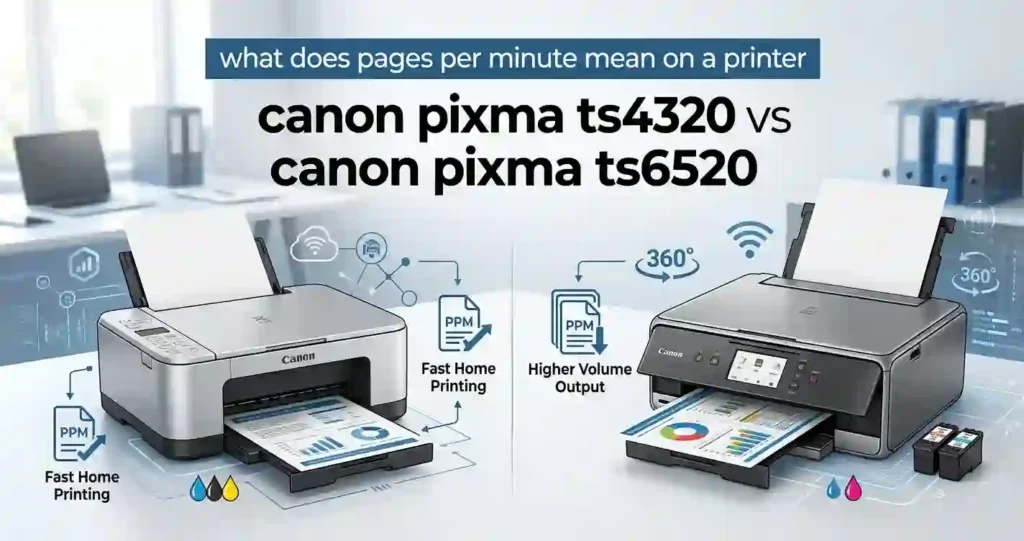
Two Canon printers look almost the same on paper. The Canon PIXMA TS4320 vs Canon PIXMA TS6520 choice comes down to one clear question. Do you want a small OLED screen on the front, or would you rather keep the money? Both are compact wireless all-in-one inkjet printers made for home printing, school assignments, photos, and light home-office tasks.
Here is the central difference. The TS6520 has a 1.42-inch monochrome OLED display. The TS4320 has no screen at all. Almost everything else in Canon’s specs matches, from print speed to paper capacity to ink.
This guide compares both on print quality, speed, ink costs, scanning, Wi-Fi, paper, and value. Specs come from Canon USA’s support pages. Prices come from US listings at Staples, Best Buy, and Amazon, checked in October 2026. Prices move fast, so treat them as a snapshot.
New to printer shopping? Start with what type of printer you need for home use.
Canon PIXMA TS4320 vs TS6520: Quick Verdict
Short answer: pick the TS4320 if you want the lowest price and can live without a screen. Pick the TS6520 if you like on-device menus and the price gap is small.
Both models share the same core specs. Canon rates each at about 14 images per minute (ipm) for black and 9 ipm for color. So the pricier model is not faster. You are paying for the display.
Best for summary
- Budget buyers: TS4320
- People who like onboard menus: TS6520
- Lowest running cost: a tie, since both use PG-295 and CL-286 ink
- Multi-page scanning: neither, because neither has an automatic document feeder (ADF)
Recent Staples listings show how small the gap can be. The TS4320 sat at $64.99 and the TS6520 at $79.99. Canon’s list prices are $107.99 and $140.99. If you want more options in this price range, see our best affordable all-in-one printer roundup.
Who Should Buy the Canon PIXMA TS4320?
- Users who want essential print, copy, and scan functions with automatic two-sided printing.
- Students, families, and occasional home users who prefer a simple control panel. If your kids print homework every week, our list of the best inkjet printer for students explains what else to compare.
Who Should Buy the Canon PIXMA TS6520?
- Users who want an OLED screen to view printer status and move through menus.
- Home-office users who like a more informative interface for routine jobs. Working from home a few days a week? Compare it with the best multifunction printer for small offices before you decide.
Canon PIXMA TS4320 vs TS6520: Specifications Comparison
Start with this table. It shows what is the same and what is different. Notice how few rows change.
| Specification | Canon PIXMA TS4320 | Canon PIXMA TS6520 |
|---|---|---|
| Printer type | All-in-one inkjet | All-in-one inkjet |
| Functions | Print, copy, scan | Print, copy, scan |
| Display | No display | 1.42-inch monochrome OLED |
| Black print speed (ESAT) | Approx. 14 ipm | Approx. 14 ipm |
| Color print speed (ESAT) | Approx. 9 ipm | Approx. 9 ipm |
| Automatic duplex printing | Yes | Yes |
| Paper capacity | 100 sheets | 100 sheets |
| Scanner | Flatbed | Flatbed |
| Automatic document feeder | No | No |
| Wireless connectivity | Dual-band Wi-Fi | Dual-band Wi-Fi |
| Ink cartridges | PG-295 and CL-286 | PG-295 and CL-286 |
| USB connectivity | Hi-Speed USB | Hi-Speed USB |
| Max print resolution | Up to 1200 x 1200 dpi | Up to 1200 x 1200 dpi |
| Recommended monthly volume | 500 pages | 500 pages |
| Weight | 11.4 lbs | 11.6 lbs |
| Size, closed (L x W x H) | 14.8 x 14 x 6.7 in | 14.8 x 14 x 6.7 in |
| Warranty | 1-year limited | 1-year limited |
| Canon list price | $107.99 | $140.99 |
Specs are based on Canon USA’s published product information and US retailer listings. Confirm the current manual and your seller’s listing before you buy.
Which Specifications Matter Most?
Four specs shape daily life with these printers: the display, the ink system, paper capacity, and duplex printing.
ESAT stands for Estimated Saturated Throughput. It is Canon’s standard test for print speed. Real jobs with photos or heavy graphics run slower. Our explainer on what pages per minute means on a printer breaks this down.
Neither model has an ADF. That matters if you scan or copy stacks of paper. If spec sheets confuse you, read printer specifications explained for beginners.
Design, Build Quality, and Ease of Use
Both printers share the same compact, boxy body. Daily use feels nearly identical, apart from the screen.
Physical Design and Desk Space
Each printer measures 14.8 inches long, 14 inches wide, and 6.7 inches tall when closed. With the paper tray extended, the width grows to 21 inches. The TS4320 weighs 11.4 pounds and the TS6520 weighs 11.6 pounds.
That 0.2 pound gap changes nothing on your desk. Leave room above for the scanner lid and in front for paper output.
Tight on space? Read what printer size is best for a small room and where to place a printer at home. Neither Canon has a real physical advantage here.
Control Panel and Display Differences
The TS4320 uses a screen-free panel with simple buttons and indicator lights. You rely on the Canon PRINT app or your computer for most settings.
The TS6520 adds a 1.42-inch monochrome OLED. It is not a touchscreen. Retailers say it lets you check ink levels, printer status, and settings at a glance.
Is it worth extra money? Only if you often use the printer without a phone in hand. Both still lean on apps and software.
Print Quality: Text, Graphics, and Photos
Canon lists the same FINE print head technology, the same ink family, and the same top resolution for both printers.
DPI means dots per inch. More dots can mean finer detail. Both models reach up to 1200 x 1200 dpi, and our guide to printer resolution in simple terms shows why paper and settings matter just as much.
Black-and-White Document Printing
Both printers use PG-295 pigment-based black ink. Pigment ink sits on top of plain paper, which helps text look crisp. That suits homework, forms, recipes, and invoices.
Results still depend on paper quality, print settings, and cartridge condition.
Print mostly text? Our laser printer vs inkjet for everyday documents comparison covers the trade-offs.
Color Graphics and Presentation Materials
Color comes from the CL-286 dye-based tri-color cartridge. It handles charts, school projects, and flyers well for the price.
Use standard quality for everyday work and draft mode for rough copies.
Not sure how much color you need? See how to choose between color and monochrome printing. Paper choice also matters, so check what paper works best with inkjet printers.
Photo Printing Performance
Canon lists borderless printing from 4 x 6 inches up to 8.5 x 11 inches. A 4 x 6 borderless photo on Canon PP-201 paper takes about 39 seconds on the TS4320.
Neither model is a professional photo printer. They use only black and a three-color cartridge, which limits color range. Learn the basics in glossy vs matte photo paper, and see how to print professional-looking photos at home.
Serious about photos? See how to choose a printer for photo printing.
Printing Speed and Everyday Performance
Canon lists the same ESAT numbers for both printers.
Black and Color Print Speeds
Canon rates both at about 14 ipm for black and 9 ipm for color. The ipm unit means images per minute, a standard test measure.
On the TS4320, the first black page arrives in about 7.5 seconds and the first color page in about 9.5 seconds. Copying runs at about 7 ipm.
One page feels fast. Forty pages feel slow. If speed bugs you, read why inkjet printing is so slow.
Automatic Two-Sided Printing
Automatic duplex printing means the printer flips the page itself. You skip the manual turn-over step. It also cuts paper use.
It helps with drafts, school assignments, and multi-page reports. If duplex pages smear or jam, check the paper type and quality settings first.
Which Printer Is Better for Frequent Printing?
Canon lists a recommended monthly print volume of 500 pages for each model. This is the sweet spot, not a hard limit. Think of it as a duty cycle for light home use.
Most families print far less. To guess your own number, see how much printing a home printer should handle.
For heavy loads, consider a different class of machine.
Ink Cartridges, Page Yield, and Running Costs
Ink is the real cost of a printer. This table shows how both models handle supplies.
| Ink or cost factor | TS4320 | TS6520 |
|---|---|---|
| Black cartridge | Canon PG-295 (pigment) | Canon PG-295 (pigment) |
| Color cartridge | Canon CL-286 (dye) | Canon CL-286 (dye) |
| Cartridge system | Two-cartridge hybrid ink system | Two-cartridge hybrid ink system |
| High-capacity options | PG-295XL / CL-286XL | PG-295XL / CL-286XL |
| Rated yield, standard | About 180 pages each | About 180 pages each |
| Rated yield, XL | About 400 pages each | About 400 pages each |
| Ink subscription eligibility | PIXMA Print Plan eligible | PIXMA Print Plan eligible |
| Automatic ink replenishment | Supported service options | Supported service options |
Yields are ISO-style estimates reported by US ink sellers. Your real yield will vary.
Because the supplies match, ink cannot decide this contest. For a deeper look at hidden costs, read inkjet printer running costs explained.
How Much Do Replacement Ink Cartridges Cost?
Canon’s list price for the PG-295XL and CL-286XL value pack runs about $107 to $112. Third-party sellers often list it near $100. Prices shift, so check Canon USA, Amazon, Best Buy, and Staples.
Standard Versus XL Cartridges
Standard cartridges cost less up front. XL cartridges usually cost less per page, so XL wins if you print weekly. Canon’s PIXMA Print Plan auto-ships ink, and one deal report put the lowest tier near $5 a month. Confirm current terms with Canon.
Before ordering, use our guide on how to check if a printer cartridge is compatible. The right pair for both printers is PG-295 and CL-286.
How Many Pages Can Each Cartridge Print?
US sellers list the standard PG-295 and CL-286 at about 180 pages each and the XL versions at about 400 pages each. These numbers follow ISO testing, which assumes light coverage of about 5 percent per page.
Photos, color graphics, and maintenance cycles use far more ink. Read why inkjet printers use so much ink, then try ways to reduce ink usage when printing.
Which Printer Has the Lower Cost per Page?
Use this formula: cost per page equals cartridge cost divided by usable page yield.
Here is a rough example. Say an XL value pack costs about $100 and splits evenly. That is about $50 per cartridge for 400 pages, or roughly 12.5 cents per black page at ISO coverage. Color and photo pages cost more.
Since both printers use the same cartridges, their ink costs should be nearly equal. Learn the full method in how to calculate the true cost of owning a printer.
Heavy printer? A refillable system may fit better. See ink cartridge printer vs refillable tank.
Connectivity and Mobile Printing Features
Wi-Fi and Wireless Printing
Canon lists dual-band Wi-Fi for both models. That means they can join 2.4 GHz and 5 GHz networks. The TS4320 page also lists WPA3 security.
You can print from laptops, phones, tablets, and Chromebooks. Need a walkthrough? Follow how to connect a printer to Wi-Fi.
Quick Fix for Network Mismatch
Most setup errors come from the printer and device sitting on different networks. Put both on the same Wi-Fi name. If it still fails, read why your printer won’t connect to Wi-Fi.
Canon PRINT App, Apple AirPrint, and Mopria
The Canon PRINT app helps you set up the printer, print, scan, and check ink levels. AirPrint works on supported Apple devices without extra drivers. Mopria covers compatible Android devices.
Both your phone and printer must share a network for AirPrint. Our guide on how to print from a phone at home covers each step.
The TS4320 page also lists Amazon Alexa support. Check the TS6520 listing if voice control matters to you.
USB Printing and Wireless Direct
A USB cable gives the steadiest link to one computer and needs no router. Wireless Direct lets a phone or laptop talk to the printer without a router, which suits guests. Day to day, home Wi-Fi is easier.
Using a computer? See how to connect a printer to a laptop. On a phone, see how to connect a printer to a smartphone.
Scanning and Copying Features
Both models scan and copy with the same flatbed hardware.
Flatbed Scanner Performance
Canon lists an optical scanning resolution of 1200 x 2400 dpi and a contact image sensor (CIS). The maximum flatbed document size is 8.5 x 11.7 inches.
That is plenty for receipts, forms, photos, and single pages. Higher resolution makes bigger files.
Wondering whether you need a scanner at all? Read all-in-one printer vs printer only.
Copying Documents at Home
The TS4320 offers 2-on-1 and 4-on-1 copy, ID card copy, fit-to-page, and two-sided copy. It scales copies from 25 percent to 400 percent. Copy speed is about 7 ipm.
Copying a recipe takes seconds. Copying a 30-page contract does not, since you must swap each page by hand.
Are These Printers Suitable for Small Businesses?
They suit light work: occasional invoices, forms, and internal papers. They struggle with bulk copying, bulk scanning, or shared-office loads.
If you scan stacks of paper, shop for an ADF model. Our guide on multifunction printers vs separate office devices can help, and so can how to choose a printer for a small business.
Paper Handling and Supported Media
Both printers use a front cassette and accept the same sizes.
Paper Capacity and Supported Sizes
The cassette holds 100 sheets of plain paper. Canon lists support for 4 x 6, 5 x 5, 5 x 7, 7 x 10, 8 x 10, and US Letter sizes. U.S. #10 envelopes and card size paper also work.
A 100 sheet tray means more refills for busy households.
Borderless Printing and Specialty Media
Borderless printing works on supported photo sizes and media. Canon lists glossy, matte, greeting card, and restickable photo paper. Plain paper can run 64 to 105 gsm, and Canon’s photo paper reaches about 275 gsm.
Check Canon’s supported media list before you load labels, cards, or heavier stock. For craft ideas, see printer paper types for creative projects.
How to Choose the Right Paper
Use plain paper for documents and coated photo paper for images. The paper type setting tells the printer how much ink to lay down, so a wrong choice can dull or smudge colors.
Tip: Store paper flat and dry. Damp or curled sheets cause jams. See how to store printer paper at home.
Price, Availability, Warranty, and Overall Value
Price is the real separator between these models.
Which Printer Is Cheaper?
The TS4320 is usually cheaper. Canon’s list prices are $107.99 for the TS4320 and $140.99 for the TS6520. Those are starting points, not what you will pay.
Recent Street Prices
Staples recently showed $64.99 for the TS4320 and $79.99 for the TS6520. One deal report put the TS4320 near $54 on Amazon. Some third-party sellers list the TS6520 above $160, so shop around.
Why a Low Price Is Not the Whole Story
Cheap printers can cost more over time. See why cheap printers can cost more over time explains the trap.
Power is a small cost. The TS4320 uses about 21 W while printing and 0.9 W on standby. See home printer electricity usage and costs for more.
Warranty and Customer Support
Both models carry a 1-year limited warranty with Canon’s InstantExchange program in the US. Proof of purchase is required. Ink and paper are not covered.
Canon offers phone support at 1-800-OK-CANON on weekdays. It also provides drivers, manuals, and a knowledge base online. Buy from a seller that offers the US warranty.
Warranty fine print can be tricky. Read printer warranty terms explained for beginners first.
Is the TS6520 Worth the Extra Money?
For most buyers, the answer is no. The display is handy, but print speed, paper capacity, scanner, and ink match the TS4320.
If the gap is $15 or less, the screen is a fair bonus. If the gap is $40 or more, spend that money on a spare XL ink pack instead.
Cross-shopping HP? Compare the HP DeskJet 2855e vs Canon PIXMA TS4320 and the HP DeskJet 2955 vs Canon TS4320.
Pros and Cons of the Canon PIXMA TS4320 vs TS6520
Canon PIXMA TS4320 Pros and Cons
Pros
- Essential all-in-one functions
- Automatic duplex printing
- Dual-band wireless connectivity
- Compact design and low price
Cons
- No display screen
- No automatic document feeder
- Two-cartridge ink system
It suits occasional home users best.
Canon PIXMA TS6520 Pros and Cons
Pros
- 1.42-inch OLED display
- Wireless printing and automatic duplex printing
- Same print, copy, and scan features as the TS4320
Cons
- No automatic document feeder
- No rated speed advantage over the TS4320
- Costs more for the screen
The screen matters most to people who use onboard controls often.
Which Canon PIXMA Printer Should You Buy?
Use this decision table to match each model to a real buying scenario.
| User scenario | Recommended choice | Reason |
|---|---|---|
| Budget-conscious home printing | TS4320 | Screen-free operation with core features |
| Users who prefer an onboard display | TS6520 | Includes a 1.42-inch OLED screen |
| Occasional school assignments | Either | Similar rated speed and paper capacity |
| Frequent multi-page scanning | Neither is ideal | No automatic document feeder |
| Heavy business printing | Consider another class | Designed for lighter workloads |
| Similar sale prices | TS6520 may appeal more | Adds display convenience |
Best Printer for Students and Families
Think homework, permission slips, and recipes. Pick the cheaper unit and keep a spare XL ink pack.
Our guide on how to choose a printer for school and family use adds more detail.
Best Printer for Remote Workers
Contracts, forms, and meeting notes print well on either model.
If you handle multi-page paperwork often, choose an ADF model. Start by working out how to choose a printer for your monthly print volume.
Photos and Creative Projects: Which Canon Fits Best?
Photo hobbyists care about borderless output, photo paper, and color accuracy. Ink and paper costs matter more than the display. Our best photo printer for home use guide shows stronger picks for photo work.
How to Set Up Your Canon PIXMA TS4320 or TS6520
Setup takes about 15 minutes on both printers.
Initial Printer Setup
- Unpack the printer and remove all tape and packing material.
- Plug it in and press the power button.
- Install the supplied PG-295 and CL-286 cartridges.
- Load plain Letter paper in the cassette.
- Download the correct software from Canon’s official support site.
- Print a test page.
New to all this? Our full guide on how to set up a printer for the first time fills in the gaps. Use how to install printer drivers correctly if the driver step fails.
Connect the Printer to Wi-Fi
- Confirm your phone or computer is on the home Wi-Fi network.
- Open the Canon PRINT app and add the printer.
- Follow the on-screen wireless setup steps.
- Enter your Wi-Fi password when asked.
- Print a test page to confirm.
If setup fails, restart your router and printer, then run setup again.
Print from a Phone or Laptop
On iPhone or iPad, tap Share, then Print, then pick the printer through AirPrint. Android, use the Canon PRINT app or Mopria.
On a laptop, choose the printer in the print window. Select paper size, quality, color mode, and two-sided printing. Print one test page before sending a big batch.
Common Problems and Troubleshooting Tips
Printer Not Connecting to Wi-Fi
Check the network name, password, and signal strength first. Make sure the printer joined the right network. Restart the router and printer.
If your router changed, rerun wireless setup. Printers that keep dropping offline need extra steps, so see why your printer keeps going offline.
Printer Printing Blank Pages or Faded Text
Check ink levels and confirm the cartridges are seated. Run the printer’s nozzle check, then one cleaning cycle if needed. Do not repeat cleaning over and over because each cycle uses ink.
Canon says the print head is not user replaceable, so gentle care matters. Read why an inkjet printer prints blank pages and why inkjet prints have lines. Print a page every week or two to avoid inkjet drying.
Slow Printing, Paper Jams, or Driver Errors
Slow output often comes from high quality or photo paper settings, so lower the quality for drafts. For a jam, turn the printer off and remove the paper gently, following Canon’s instructions. If the printer vanishes from your computer, see printer not showing on computer. For other issues, check common home printer problems.
Frequently Asked Questions (FAQ)
1. What Is the Main Difference Between the Canon PIXMA TS4320 and TS6520?
The TS6520 has a 1.42-inch monochrome OLED display. The TS4320 has none. Otherwise both print, copy, and scan, both have dual-band Wi-Fi, and both share the same ink and paper capacity.
2. Is the Canon PIXMA TS6520 Faster Than the TS4320?
No. Canon lists about 14 ipm for black and 9 ipm for color on both. Actual speed depends on document complexity and print settings.
3. Do the Canon PIXMA TS4320 and TS6520 Use the Same Ink?
Yes. Both use PG-295 black and CL-286 color cartridges, with XL versions. Weigh original vs compatible printer cartridges before ordering.
4. Which Canon PIXMA Printer Has Lower Ink Costs?
They are about equal because they use the same cartridges. Work out your cost per page with current prices and the yield data above. Read why printer ink costs so much and how to save money for more tips.
5. Can Both Printers Print Photos Without Borders?
Yes, on supported media and sizes. Match the paper size and paper type in your print settings. Canon lists borderless printing from 4 x 6 up to 8.5 x 11 inches.
6. Do the Canon PIXMA TS4320 and TS6520 Support Wireless Printing?
Yes. Both have dual-band Wi-Fi. You can print through the Canon PRINT app, AirPrint, or Mopria. Setup depends on your device, operating system, and network.
7. Do Either of These Printers Have an Automatic Document Feeder?
No. Both use a flatbed scanner and have no ADF. This matters for multi-page scans and copies, since you must swap pages by hand.
8. Can These Canon Printers Automatically Print on Both Sides?
Yes. Both support automatic two-sided printing. It saves paper and spares you from flipping pages.
9. Are the TS4320 and TS6520 Good Printers for Home Offices?
They are fine for light printing, scanning, and copying. For frequent bulk jobs or multi-page scanning, pick a more business-focused model. Learn when to move up in how to choose a printer for a small office.
10. Which Canon PIXMA Printer Offers Better Value for Money?
The TS4320 wins when it costs less and you do not need a screen. The TS6520 wins when the price gap is small and the display helps you. Either way, compare current prices first.
Conclusion: Canon PIXMA TS4320 vs TS6520
The Canon PIXMA TS4320 and TS6520 are closely matched. They share speed, ink, paper capacity, scanner, and Wi-Fi. The OLED display is the one real difference.
Let current US pricing, expected monthly volume, and scanning needs guide your choice. For most buyers, the cheaper unit is the smarter buy. Only pay extra if you will really use the screen.
Plan for the long run too with our guide on how long an inkjet printer usually lasts.




