
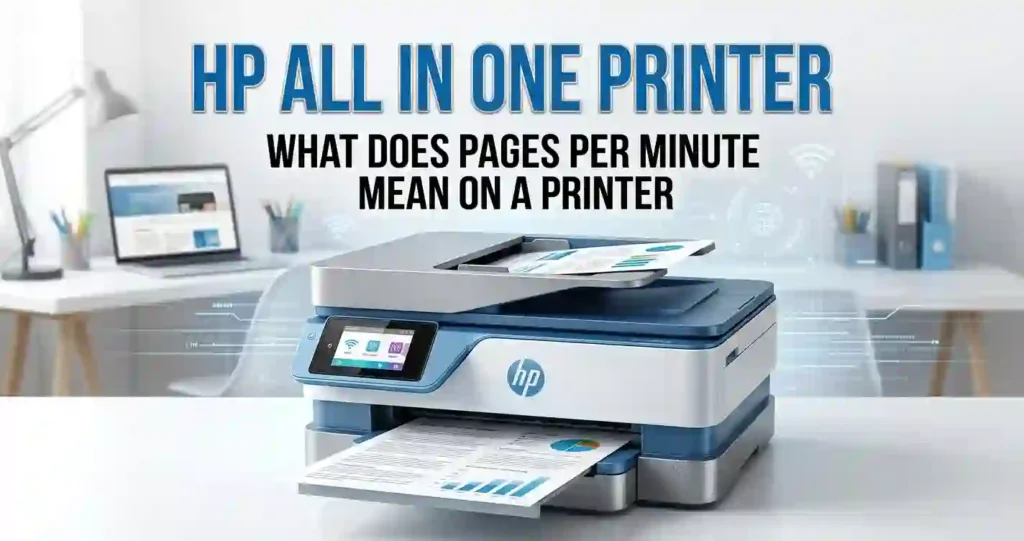
An HP all in one printer is a multifunction device that typically prints, scans, and copies documents. Some models also send faxes. You may also see it called an HP multifunction printer.
Two technology groups matter most. A multifunction inkjet printer sprays tiny drops of liquid ink onto paper. A laser all-in-one printer melts dry toner powder onto the page with heat.
Inkjets handle color well and cost less upfront. Lasers print text fast and keep it sharp. To learn how each works, read how inkjet printers work and how a laser printer works.
Most shoppers want a wireless all-in-one printer for a home office printer setup. Many also use the built-in document scanner more than they planned.
What Functions Does an HP All-in-One Printer Offer?
- Printing: Everyday documents, school assignments, business reports, and photos, depending on the model.
- Scanning and copying: Turn paper into digital files, make quick copies, and share scans by email or app.
- Extra features: Some models add an automatic document feeder (ADF), faxing, automatic duplex (two-sided) printing, and mobile printing.
Not every model has every feature, so check the spec sheet. Our guide to printer features worth paying extra for helps you skip the fluff.
Flatbed Versus Feeder Scanning
A flatbed is the glass you lift the lid to use. It works well for single pages, books, and receipts. An ADF pulls a stack of pages through on its own. That saves real time with contracts or tax paperwork.
Who Should Buy an HP All-in-One Printer?
- Home users who print schoolwork, forms, recipes, and shipping labels.
- Small businesses and remote workers who need printing, scanning, and copying in one device. See how to choose a printer for a small business.
- Students and families who want a space-saving alternative to separate office machines. Our best printer for family use page goes deeper.
Best HP All-in-One Printer Types for Different Needs
HP’s lineup falls into three groups: inkjet, cartridge-free ink tank (HP calls these Smart Tank), and laser. Each one fits a different kind of printing life.
Three questions narrow the field. How often do you print? Do you need color? What can you spend on supplies each year?
A person printing 20 pages a month needs a basic inkjet. A team printing 1,500 pages needs a sturdier laser or ink tank model. Our guide on choosing a printer for your monthly print volume walks through the math.
HP Inkjet All-in-One Printers
Inkjets suit color documents, graphics, and occasional photo printing. Popular families include HP DeskJet, ENVY, and OfficeJet.
The trade-off is upkeep. Cartridges cost money, and the printhead can dry out if the machine sits idle for weeks. Read why an inkjet printer dries out and how long an inkjet printer can sit unused before buying for light use.
Want a model-level look? Try HP DeskJet 2855e vs ENVY 6155e.
HP Laser All-in-One Printers
Laser models fit frequent, text-heavy printing. Think invoices, reports, and class handouts. They print fast, and a toner cartridge goes a long way.
Key terms to know are toner cartridges, print speed, monthly duty cycle, and cost per page. HP LaserJet multifunction models come in monochrome (black and white) or color.
Our explainer on laser printer cost per page shows how to compare them. You can also see whether a laser printer is worth it for home use.
HP Smart Tank All-in-One Printers
Smart Tank printers use refillable ink tanks instead of small cartridges. You pour ink from bottles into built-in tanks. HP advertises far higher yields for these bottles than for standard cartridges.
They suit households and offices with regular print needs. They also cost more upfront. Real savings depend on your print volume and replacement ink prices.
For a closer look, see our HP Smart Tank 7302 review and the guide to ink cartridge printers vs refillable tanks.
Supplies Cost Reality Check
Ink tank savings build over time. At 30 pages a month, you may never earn back the higher price. At 400, you probably will.
Key Features to Look for in an HP All-in-One Printer
Compare specs instead of choosing on price or brand alone. Resolution, speed, paper handling, and connectivity shape daily use. Premium extras pay off only if they match your workload.
Print Quality and Resolution
Resolution is measured in dots per inch (DPI). More dots in each inch means finer detail. For plain text, most modern all-in-ones look sharp. Photos need more care, because paper type and color ability matter as much as DPI. Our guide to printer resolution in simple terms covers the basics.
DPI in Plain English
Picture a mosaic. Small tiles show a clearer picture than big tiles. DPI counts the tiles. But a big number does not guarantee a great print. Ink, paper, and settings matter too.
Borderless photo printing and color accuracy depend on the model. Photo fans should read how to print professional-looking photos at home and learn what paper works best with inkjet printers.
Wireless Connectivity and Mobile Printing
Most HP models connect by Wi-Fi or USB. Some add Ethernet for office networks. You can print from smartphones, tablets, laptops, and desktop computers.
The HP app (called HP Smart) helps with setup, scanning, and mobile printing on supported models. You need a working Wi-Fi network and the right password. Our how-to on printing from a phone at home covers the details.
Connection Terms Worth Knowing
- Wi-Fi: Connects through your router with no cable.
- USB: A direct cable to one computer.
- Ethernet: A wired network cable, good for steady office use.
- Wi-Fi Direct: Lets a phone talk to the printer without a router, on supported models.
Automatic Duplex Printing and Paper Handling
Automatic duplex printing means two-sided printing without flipping pages by hand. On long documents, it can cut paper use nearly in half.
Check the input tray capacity, paper sizes, envelopes, and specialty media. In the US, most people print on Letter (8.5 x 11 inches), with Legal (8.5 x 14 inches) now and then.
An ADF beats a flatbed alone when you scan stacks of pages. If you scan one page a week, you can skip it. Good paper habits matter too, so see how to store printer paper at home.
Print Speed, Duty Cycle, and Monthly Volume
Speed and workload ratings confuse many shoppers. Here is the simple version.
PPM in Plain English
Pages per minute (PPM) tells you how many pages print each minute. Real speeds vary with document type and print settings. Photos and color pages print slower than plain text. Our explainer on what pages per minute means digs deeper.
Duty Cycle Without the Jargon
Duty cycle is the most pages a printer can handle in a month before wear becomes a concern. Recommended monthly volume is a lower, healthier range. Aim to stay near the recommended number, not the maximum.
Home, student, and small-office users all land in different ranges. See how many pages an office printer can handle monthly to match ratings to your needs.
How to Choose the Right HP All-in-One Printer
Start with a realistic estimate of your monthly black-and-white and color pages. Then add up the total cost of ownership: the printer, ink or toner, paper, and upkeep. Skip any feature you will never use.
People often guess low on this number. Our guide to the true cost of owning a printer shows how to get it right.
Best HP All-in-One Printer for Home Use
Look for an affordable price, a compact design, wireless printing, and easy setup. If your household prints rarely, watch cartridge costs closely. Think about photos, school projects, and scanning personal documents.
Our best affordable all-in-one printer roundup is a good next stop.
Best HP All-in-One Printer for Small Offices
Look for dependable connectivity, automatic duplex printing, and enough paper capacity. Compare print speeds, document feeder features, security options, and recommended monthly volume. Pick OfficeJet or LaserJet based on color needs and print frequency.
See our best multifunction printer for small offices guide. For a model comparison, read HP OfficeJet Pro 9125e vs 9135e.
Security and Sharing
Office printers handle sensitive pages. Learn the office printer security basics. Then see how to share a printer across an office network.
Best HP All-in-One Printer for Students
Compare the upfront price with ongoing ink or toner costs. Look for wireless printing, scanning, copying, and easy printing from a phone. Consider compact size, homework needs, and replacement supplies.
Our best inkjet printer for students and printer for school homework guides go further.
How to Calculate Printing Costs
Use this formula: cost per page = supply price divided by page yield. Advertised yields come from standardized tests. Your real results change with page coverage and usage.
Then add the purchase price to expected supply costs over the years you plan to keep it.
Worked Example With Real Numbers
These numbers are examples, not price quotes. Say you print 500 pages a year.
- Inkjet cartridge: $25 for 200 pages is about 12.5 cents per page, or roughly $62 a year.
- Laser toner: $70 for 1,500 pages is about 4.7 cents per page, or roughly $23 a year.
- Ink tank bottle: $15 for 6,000 pages is about a quarter of a cent per page, or roughly $1 a year.
Check live prices at Amazon, Best Buy, Staples, or Walmart. For ways to cut costs, read how to reduce ink usage when printing.
HP All-in-One Printer Comparison Table
Use this comparison table to evaluate HP printer families by technology, typical workload, and ongoing supply requirements. A good printer buying guide should stress total ownership cost and practical specifications, not just the initial purchase price.
| HP printer family | Technology | Best suited for | Main consideration |
|---|---|---|---|
| HP DeskJet | Inkjet | Basic home and student printing | Cartridge replacement costs |
| HP ENVY | Inkjet | Home use and color documents | Features and ink expenses vary by model |
| HP OfficeJet | Inkjet | Home offices and small businesses | Workload, speed, and paper handling |
| HP Smart Tank | Refillable ink tank | Regular, higher-volume color printing | Upfront price and refill costs |
| HP LaserJet | Laser | Text-heavy home or office documents | Toner costs and monochrome versus color |
Note: Features, availability, and specifications vary by individual model. Verify the exact product specifications before recommending or purchasing a printer.
HP All-in-One Printer Price and Running Costs
The purchase price is what you pay at the register. The running cost is what you pay after that. For many people, running costs end up larger.
Entry-level inkjet all-in-ones often sell for under $100 at big US retailers. Laser and ink tank models usually cost more. Prices change, so check current listings.
Add up ink, toner, paper, and upkeep. Then compare the cost per page with how much you print. Our guide on inkjet printer running costs can help.
Are HP All-in-One Printers Expensive to Maintain?
It depends on the type. Cartridge-based inkjets can cost more per page. Refillable ink tank printers cost less per page but more upfront. Laser printers sit in the middle for text and fall behind for color.
A low sticker price can hide high supply costs. Print volume, color coverage, and supply availability all change the final bill. Read why cheap printers can cost more over time and why printer ink costs so much.
How Long Do HP Ink and Toner Cartridges Last?
Advertised page yield is the number of pages a cartridge should print under standard test conditions. Heavy graphics and dark photos use more ink. Print settings matter too.
Rare use hurts inkjets. The printhead can clog, and that wastes ink on cleaning cycles. For laser supplies, see how long printer toner lasts.
Always check manufacturer guidance for your exact model. If you consider third-party supplies, read original vs compatible printer cartridges. Some HP printers also reject certain cartridges, as explained in why a printer rejects new cartridges.
How to Set Up an HP All-in-One Printer
Setup takes about 15 to 30 minutes for most models. Follow this quick path, then use HP’s official instructions for your exact model.
- Unbox and remove tape. Peel off all orange or blue tape inside and out.
- Power on. Plug in the printer and press the power button.
- Install ink or toner. Follow the on-screen prompts.
- Load Letter paper. Fan the sheets and fit them in the tray.
- Connect to Wi-Fi. Use the HP app or the setup method for your model.
- Print a test page. Confirm everything works.
HP’s official setup page is the safest source for software. Our HP setup walkthrough explains the steps. If your computer needs a driver, see how to install printer drivers correctly.
How to Connect an HP All-in-One Printer to Wi-Fi
Confirm your printer and setup device meet the model’s network needs. Many printers need a 2.4 GHz network during setup. Then follow these steps:
- Place the printer near your router.
- Connect your phone or laptop to the same Wi-Fi network.
- Install the HP Smart app.
- Open the app and tap Add Printer.
- Pick your network and type the password.
- Print a test page.
If the connection fails, try the setup method your model supports. Our general guide on how to connect a printer to Wi-Fi has more options.
How to Print From a Phone or Laptop
Windows PCs, Macs, iPhones, iPads, and Android devices all have printing options. The HP Smart app works on most of them. Built-in services help too, such as Apple AirPrint on iPhone and Mac, and Mopria on Android.
If your device cannot see the printer, check three things. Is it on the same network? Is the printer on and ready? Does your model support that service?
For step-by-step help, see how to connect a printer to a smartphone and how to connect a printer to a laptop.
How to Scan and Copy Documents
Lift the lid and place the page face down on the glass. Line it up with the corner guide. Or load a stack into the ADF if your model has one.
Scan-to-computer and scan-to-mobile options vary by model. The HP Smart app handles most of them.
Quick tips for good results:
- Resolution: 300 DPI works for most documents.
- File format: Choose PDF for text and JPEG for photos.
- Paper size: Pick Letter for US documents.
- Copy settings: Set color, number of copies, and lighter or darker output.
Common HP All-in-One Printer Problems and Solutions
Most trouble falls into four groups: connectivity, print quality, paper handling, and supply warnings. Start with the printer’s display and the HP app messages. Then follow HP’s official steps for your model.
Note your exact model and any error code before you contact support. Our overview of common home printer problems is a handy backup.
HP All-in-One Printer Not Connecting to Wi-Fi
Check the network name, password, signal strength, and the printer’s connection status. Restart the printer and router when it makes sense. Then repeat the wireless setup. Look for software updates and model-specific network rules too.
If the problem sticks, read why a printer will not connect to Wi-Fi and printer not showing on computer.
Router Settings That Block Printers
Some routers hide the 2.4 GHz band or keep devices apart. Both can block setup. Skip guest networks during the test, and keep the printer in good signal range.
HP Printer Printing Blank Pages or Faded Text
Check ink or toner levels first. Confirm the correct paper type and print settings. On inkjets, run the supported printhead cleaning and diagnostic tools when needed.
On laser models, look at toner warnings and follow HP’s handling instructions. Our guides on inkjet blank pages, faded laser prints, and lines on inkjet prints go deeper.
Nozzle Check Basics
A nozzle check prints a test pattern. Gaps in the pattern point to clogged nozzles. Run one cleaning cycle, then test again. Avoid repeating cleanings, because each one uses ink.
HP All-in-One Printer Not Scanning or Copying
Look at the scanner glass, the feeder, and any error message. Make sure the right software, permissions, and connection are in place.
Try a copy straight from the printer. If copying works but scanning fails, the cause is likely software or connection, not hardware.
HP Printer Offline or Not Responding
Confirm the printer is on and joined to the right network or USB port. Check the selected printer, any stuck print jobs, and your operating system’s printer settings. Restart the affected devices, then follow the model steps if the issue stays.
Read why a printer keeps going offline and how to reconnect an offline printer.
Windows and Mac Checks
On Windows, clear the print queue and set the HP as your default printer. On a Mac, remove the printer and add it again. Both fixes solve many “offline” messages.
HP All-in-One Printer Maintenance Tips
Routine care keeps print quality steady. Store paper flat and dry. Watch your supply levels. Clean only as HP’s model instructions allow.
Skip unapproved cleaning methods. Harsh chemicals can damage parts. Our guide to laser printer maintenance requirements lists safe habits, and how to check printer ink levels correctly helps you plan refills.
How to Keep an HP Inkjet Printer in Good Condition
Print something now and then if HP recommends it for your model. Use the built-in cleaning tools when quality drops. Avoid extra cleaning cycles, which can burn through ink.
Idle Printer Habits
Leave the printer plugged in so it can run its own upkeep. Use the power button, not the wall switch. See how often an inkjet printer should be used for a simple routine.
How to Maintain an HP Laser All-in-One Printer
Follow HP’s steps for replacing toner and other serviceable parts. Keep vents clear and use the recommended paper type. Never touch sensitive internal parts. Let hot components cool before you open the printer.
A well-kept laser can last for years. Read laser printer lifespan explained for what to expect.
HP All-in-One Printer: Pros and Cons
An all-in-one saves space and the cost of separate machines. The trade-offs are supply costs, speed, upkeep, and repair.
Still unsure? See multifunction printer vs separate office devices.
Advantages of HP All-in-One Printers
- Saves workspace by combining printing, scanning, and copying.
- Wireless and mobile printing on supported models.
- Many choices across technologies and product families.
Disadvantages to Consider Before Buying
- One failure can hit several functions in a single device.
- Some low-cost cartridge models have high running costs.
- Features and speed vary, so compare exact model specs.
If a printer keeps failing, check how long an inkjet printer usually lasts and why a home printer may not be worth repairing.
Frequently Asked Questions About HP All-in-One Printers
What Is the Best HP All-in-One Printer for Home Use?
The best pick depends on how much you print, your budget, photo needs, and supply costs. A DeskJet suits light printing. An ENVY adds better features and photo quality. A Smart Tank fits families that print every week. Compare current model specs before buying.
Are HP All-in-One Printers Good for Small Businesses?
Yes, they can be. Printing, scanning, and copying in one device simplifies daily office tasks. Look at the recommended monthly volume, security features, and running costs. OfficeJet Pro and LaserJet models usually fit small teams better than basic home DeskJet models.
What Is the Difference Between HP DeskJet, ENVY, and OfficeJet?
DeskJet targets basic, budget home printing. ENVY aims at home users who want color documents and better features. OfficeJet is built for home offices and small businesses with heavier workloads. Features differ by model, so check connectivity, specs, and cartridge needs for each one.
Can I Print From My Phone to an HP All-in-One Printer?
Yes, on most models. You can use the HP Smart app or built-in services such as Apple AirPrint and Mopria for Android. Support depends on your phone and printer. Both usually need to be on the same Wi-Fi network.
Do HP All-in-One Printers Scan and Copy Without a Computer?
Many do. Most models copy directly from the printer glass. Standalone scanning varies. Some scans need the HP Smart app, a computer, a network, or a cloud service. Check your model’s specs to see which functions work without a computer.
Are HP Ink Tank Printers Cheaper to Run Than Cartridge Printers?
Often, yes, for frequent printing. Refillable ink bottles usually cost less per page than cartridges. But the printer costs more upfront. Your savings depend on purchase price, ink use, maintenance, and how many pages you print each month.
How Do I Connect My HP All-in-One Printer to Wi-Fi?
Put the printer near your router, install the HP Smart app, and tap Add Printer. Choose your network and enter the password. Then print a test page. Setup steps differ slightly by model, so follow HP’s official instructions for yours.
Why Is My HP All-in-One Printer Printing Blank Pages?
Common causes are empty or low ink, clogged inkjet nozzles, wrong paper or print settings, or a model-specific fault. Check supply levels first. Then run the printer’s cleaning and diagnostic tools. If blank pages continue, contact HP support with your model number.
How Much Does It Cost to Maintain an HP All-in-One Printer?
Costs depend on cartridge or toner prices, page yield, and how much you print. Add paper too. Compare the cost per page and your expected annual printing. A light user might spend under $50 a year. A heavy user can spend several times that.
How Long Does an HP All-in-One Printer Usually Last?
Lifespan depends on usage, upkeep, environment, and parts availability. Many home models last several years with care. If problems keep coming back, compare repair costs with replacement costs. Newer models may also give better features and lower running costs.
Conclusion: Is an HP All-in-One Printer Right for You?
An HP all in one printer is a smart fit if you want printing, scanning, and copying in a single device. It saves desk space and simplifies daily tasks. For most people, that convenience is the real win.
Remember the key buying factors: printing volume, color needs, connectivity, print quality, and total running costs. A cheap printer with pricey ink is no bargain. A strong match to your habits will serve you well.
Next, compare specific models and check official HP specifications before you buy. Start with our HP ENVY 6155e vs ENVY 6555e and HP OfficeJet Pro 8125e vs 8135e comparisons. Happy printing!




