
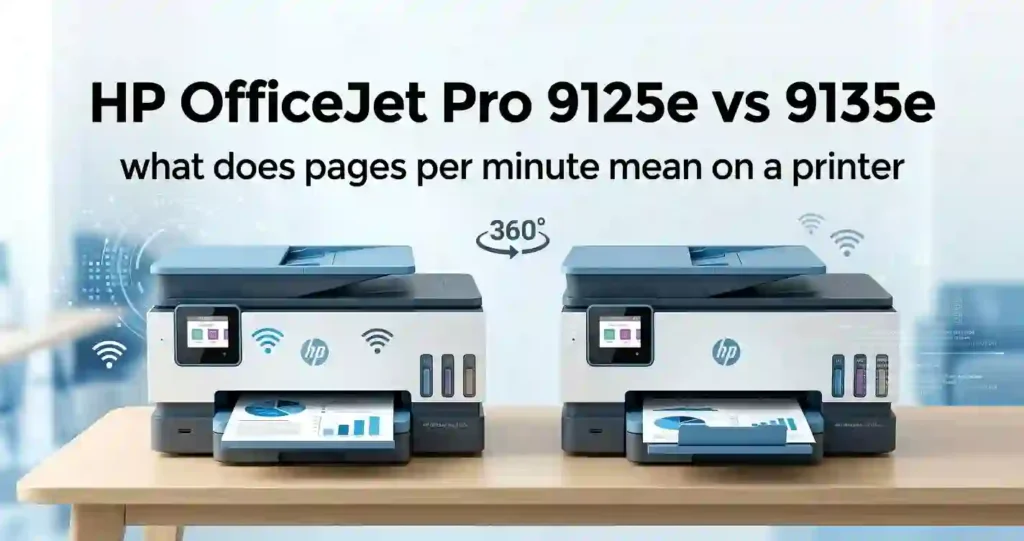
The HP OfficeJet Pro 9125e and 9135e are two color inkjet all-in-ones for home offices and small businesses. Both print, scan, copy, and fax. They look alike on a shelf, yet they differ in speed, paper capacity, and screen size.
Many buyers ask one question. Is the 9135e worth the extra money? This guide answers it with plain facts. If you are still narrowing your options, read our guide on how to choose a printer for a small office first.
How we built this comparison: We read HP’s published specs. We checked US retailers such as Staples, Office Depot, and Micro Center. We also reviewed test data from Consumer Reports and RTINGS Did not run our own lab tests, and prices change often, so confirm before you buy.
HP OfficeJet Pro 9125e vs 9135e: Key Differences
Quick answer: The 9135e is the faster, larger, more productive model. The 9125e costs less and suits most home offices well. Both are color inkjets that print, scan, copy, and fax.
Where they differ:
- Speed: 22 ppm black and 18 ppm color (9125e) versus 25 and 20 ppm (9135e).
- Paper: one 250-sheet tray versus two, for 500 sheets in total.
- Screen: 2.7 inches versus 4.3 inches.
- Scanner: a dual-pass two-sided feeder versus a single-pass one.
- Duty cycle: up to 25,000 versus up to 30,000 pages a month.
What they share: Both use thermal inkjet printing and four HP 936-family cartridges. Both fit the multifunction printer approach instead of separate office devices.
What to verify: Match the exact model number before you order. US listings show 403X0A for the 9125e and 404M0A for the 9135e. Confirm feeder capacity, bundled ink, and HP+ terms on HP’s US product pages.
Quick Comparison of Main Specifications
The table below lists the specs that affect daily office work. If terms like ISO speed or duty cycle are new to you, see printer specifications explained for beginners.
| Feature | HP OfficeJet Pro 9125e | HP OfficeJet Pro 9135e |
|---|---|---|
| Printer type | Color inkjet all-in-one | Color inkjet all-in-one |
| Print technology | HP thermal inkjet, 4 cartridges | HP thermal inkjet, 4 cartridges |
| Print speed (ISO) | Up to 22 ppm black, 18 ppm color | Up to 25 ppm black, 20 ppm color |
| Print resolution | Up to 1200 x 1200 dpi black, 4800 x 1200 optimized color | Up to 4800 x 1200 optimized dpi color |
| Automatic duplex printing | Yes | Yes |
| Automatic document feeder | 35 sheets, dual-pass two-sided | 35 sheets, single-pass two-sided |
| Scan, copy, and fax | Yes. Copies up to 21 cpm black | Yes. Copies up to 23 cpm black, scans up to 18 ipm |
| Paper capacity | 250-sheet tray, 60-sheet output | Two 250-sheet trays |
| Wireless connectivity | Dual-band Wi-Fi, Ethernet, USB, AirPrint, Mopria, Wi-Fi Direct | Same, plus Chrome OS printing |
| Ink cartridge compatibility | HP 936 family | HP 936 family |
| Touchscreen | 2.7 inches | 4.3 inches |
| Monthly duty cycle | Up to 25,000 pages | Up to 30,000 pages |
| Best use case | Solo office, light to moderate volume | Busy office, small team, heavy paper and scanning |
Print Speed and Overall Performance
HP rates the 9135e at up to 25 ppm black and 20 ppm color. The 9125e is rated at up to 22 ppm black and 18 ppm color. That is about three pages a minute in black.
You will feel the gap on long reports. Busy home offices do fine with either model. Teams that print all day will like the 9135e more.
What PPM Means in Plain English
PPM means pages per minute. It counts how many pages a printer finishes in one minute during a standard test. ISO ratings use the same test file for every brand, so they compare fairly. Our guide on what pages per minute means on a printer goes deeper.
Real-World Speed Factors
Your real speed is lower than the label. Complex graphics slow the job. Best quality mode slows it more. A weak Wi-Fi link can delay the start.
The 9125e also lists a draft mode of up to 32 ppm, which suits internal drafts. See why inkjet printing is so slow for more causes.
Paper Capacity and Document Handling
The 9125e has one 250-sheet input tray. The 9135e has two 250-sheet trays, so it holds 500 sheets. Both handle paper up to 8.5 x 14 inches, which covers US Letter and Legal.
A second tray helps when you switch paper often. Keep Letter in one and Legal or letterhead in the other.
Both models include a 35-sheet feeder and two-sided scanning. That helps with contracts, forms, and multipage paperwork. For paper choices, read what paper works best with inkjet printers and how to choose paper for office documents.
Touchscreen and Ease of Use
The 9125e has a 2.7-inch touchscreen. The 9135e has a 4.3-inch screen with a phone-like layout. Both let you copy, scan, fax, and change settings without a computer.
A bigger screen means fewer taps. It helps most when several people share the printer.
Ask yourself which features you will use every day. Our guides on what printer features actually matter and which printer features are worth paying extra for can help you decide.
Print Quality: Which Printer Produces Better Results?
Expect very similar results from both. They use the same kind of print engine and the same ink family. RTINGS also describes their print quality and yield as near-identical.
Text sharpness and color depend more on paper, settings, and ink condition than on the model.
Spec-sheet resolution is not the same as real quality. Paper and ink decide how dots look. To see how it works, read how inkjet printers work and our inkjet printhead explainer.
Black-and-White Documents and Business Reports
Both printers produce crisp black text for invoices, contracts, spreadsheets, and reports. Small fonts stay readable on plain office paper. Draft mode is faster and uses less ink, but text looks lighter.
Normal mode is the sweet spot for most work. To cut waste, try our tips on how to reduce ink usage when printing.
Best Settings for Everyday Text
- Choose Draft for internal notes and checklists.
- Choose Normal for invoices, forms, and reports.
- Choose Best for proposals and client handouts.
- Turn on two-sided printing for long documents.
Color Graphics, Charts, and Photos
Both models print bright charts, brochures, and presentations. Photo paper gives richer tones, and both support borderless printing.
Neither is a dedicated photo printer. If photos are your main job, read how to choose a printer for photo printing. If you rarely print color, our guide on choosing between colour and monochrome printing may save you money.
DPI Explained Simply
DPI means dots per inch. More dots in each inch can mean finer detail. Both printers list up to 4800 x 1200 optimized dpi in color, but that peak figure applies to photo paper. Our printer resolution explained in simple terms guide covers the rest.
Ink Cartridges, Page Yield, and Running Costs
Ink is where the real money goes. Two things drive your cost: page yield and cartridge price.
Page yield is how many pages one cartridge prints under a standard test. Real yield changes with coverage, settings, and cleaning cycles. Read our inkjet printer running costs explained guide for the full picture.
Both models use the HP 936 family. That includes standard 936, high-yield 936XL, and 936e versions. Also check why inkjet printers use so much ink to avoid surprise bills.
HP Instant Ink: Both printers are eligible. Retail listings say a monthly fee starts after a 3-month trial. Read the plan terms before you enroll, because fees continue until you cancel.
Which Printer Has Lower Ink Costs?
Neither has a clear edge. Both use the same cartridges, and the standard HP 936 black is rated for about 1,250 pages. Standard color cartridges are rated for about 800 pages each.
Consumer Reports measured the 9125e at about 3.4 cents per page for black text. The 9135e should land close to that because it shares the same ink. Treat the printer price gap as the main cost difference.
Use high-yield cartridges when you print a lot. They usually lower your cost per page. Our guide on how to compare office printer running costs shows how.
Genuine HP Ink vs. Compatible Cartridges
Genuine HP ink costs more. It also gives you the least risk for print quality, support, and warranty. Compatible and remanufactured cartridges cost less, but results vary by brand.
Both models are HP+ eligible. HP+ is built around Original HP ink, and firmware security can block cartridges it does not recognize. Read why a printer rejects new cartridges before you buy third-party ink.
For a full breakdown, see genuine vs compatible ink and remanufactured ink cartridges explained. Then use our cartridge compatibility checklist to confirm fit.
How to Estimate Monthly Printing Costs
Use this simple formula: monthly ink cost = monthly pages x ink cost per page. Find your cost per page by dividing cartridge price by rated yield. For example, a $50 cartridge rated for 1,250 pages costs 4 cents per page.
Add paper, spare cartridges, and any ink plan fee. Our guide to calculating office printing costs gives a full worksheet.
Sample Monthly Math
The table uses 3.4 cents for black text. The 9 cent color rate is an example, not a measured figure.
| Monthly pages | Black text (3.4 cents) | Mixed color (9 cents, example) |
|---|---|---|
| 200 | $6.80 | $18.00 |
| 500 | $17.00 | $45.00 |
| 1,000 | $34.00 | $90.00 |
Connectivity and Mobile Printing
Both printers offer Ethernet, USB, and dual-band Wi-Fi. Both support the HP app, Apple AirPrint, Mopria, and Wi-Fi Direct. The 9135e listings also mention Chrome OS printing.
Wi-Fi Direct lets a phone connect straight to the printer without a router. AirPrint lets iPhones and Macs print with no extra app. Mopria does the same for Android.
Keep firmware updated and use a strong Wi-Fi password. For phone setup, read how to connect a printer to a smartphone and how to print from a phone at home.
Printing From Windows, Mac, iPhone, and Android
Start with the HP app on your phone or computer. It finds the printer on your network and guides you through setup. Windows and Mac can also add the printer through system settings.
iPhone users can print through AirPrint. Android users can use Mopria or the HP app.
If the printer will not appear, restart the router and the printer. Make sure both sit on the same network. Then see how to install printer drivers correctly and what to do when a printer is not showing on your computer.
Which Printer Is Better for a Shared Office?
Pick the 9135e for a shared office. The faster speed, second tray, and larger screen reduce waiting and reloading.
Use Ethernet when many people print at once. A wired link is steadier than Wi-Fi. Compare the options in network printer vs USB printer for an office.
Then learn how to share a printer across an office network. Protect sensitive pages with office printer security basics, including firmware updates and strong passwords.
Scanning, Copying, Faxing, and Office Productivity
Both models scan, copy, and fax from one box. Both include a 35-sheet feeder and two-sided scanning.
The 9135e adds a few speed gains. It copies at up to 23 cpm in black versus 21 cpm for the 9125e. Its single-pass scanner is the bigger upgrade for paperwork-heavy days.
If scanning is a big part of your job, our best multifunction printer for small offices guide shows other strong picks. Compare printing-only options in all-in-one printer vs printer only.
Automatic Duplex Printing and Scanning
Automatic duplex printing means the printer prints both sides of a page on its own. It cuts paper use for long reports and saves trips to the paper tray. Both models do it.
Two-sided scanning works through the feeder. Speed is where the models differ.
Single-Pass Versus Dual-Pass Scanning
A dual-pass feeder scans one side, flips the page, then scans the other side. A single-pass feeder captures both sides in one trip. That is the 9135e’s method, and the 9125e uses dual-pass.
The 9135e is rated for up to 18 ipm in scanning. Single-pass saves the most time when you digitize big stacks of two-sided pages.
Is Fax Still Useful for Small Businesses?
Fax is old, but it is not dead. Some legal, medical, real estate, and government workflows still ask for faxed forms. Built-in fax handles those without a separate machine.
Both printers include fax, so fax should not decide your purchase. The 9135e lists a 100-page fax memory.
Price, Value, and Total Cost of Ownership
Recent US retailer listings showed the 9125e from about $220 to $310 and the 9135e from about $300 to $430. Sale prices move often, so check Staples, Office Depot, Best Buy, and Amazon on the day you buy.
A low sticker price does not always mean low cost. Ink, paper, and warranty add up over the years. Read why cheap printers can cost more over time and how to calculate the true cost of owning a printer.
Check whether bundled ink is full-size or starter.
Is the HP OfficeJet Pro 9135e Worth the Extra Money?
The extra money buys a second tray, a larger screen, faster rated speeds, and single-pass scanning. That is a real upgrade if you print or scan often. It is wasted if you print a few pages a week.
Think in time saved. If a second tray saves you one reload a day, that adds up. Our guide on how to choose a printer for your monthly print volume helps you match volume to model.
The 9125e wins on value for lighter workloads. You still get duplex printing, a feeder, and fax.
Warranty, Setup, and Ownership Considerations
HP printers usually carry a limited manufacturer warranty, and US terms can change. Check HP’s US page for the current length and what it covers. Our printer warranty terms explained for beginners guide helps you read the fine print.
Setup needs an HP account for HP+ and Instant Ink. Review return policies at your retailer.
If you manage a growing business, compare buying or leasing a printer too.
Pros and Cons of the HP OfficeJet Pro 9125e vs 9135e
Both printers are solid office inkjets. Their pros and cons come down to speed, paper handling, and price. Use the lists below to match each one to your needs.
HP OfficeJet Pro 9125e: Pros and Cons
Pros:
- Lower price than the 9135e.
- Rated speeds are fast enough for many home offices.
- Compact design with a simple single-tray setup.
- Duplex printing, two-sided scanning, feeder, and fax included.
Cons:
- One 250-sheet input tray.
- Smaller 2.7-inch touchscreen.
- Slower rated speeds than the 9135e.
It meets typical document, scanning, and color needs well. For lifespan expectations, see how long an inkjet printer usually lasts.
HP OfficeJet Pro 9135e: Pros and Cons
Pros:
- Faster rated speeds: 25 ppm black and 20 ppm color.
- Two 250-sheet trays for 500 sheets.
- Larger 4.3-inch touchscreen.
- Single-pass two-sided scanning.
- Higher duty cycle of up to 30,000 pages.
Cons:
- Costs more up front.
- Extra features may go unused by occasional printers.
- Ink and plan costs still apply.
It suits a growing office or a high-volume home.
Which Printer Should You Buy?
Match the printer to your monthly volume, paper needs, desk space, and budget. Pick features that solve a real workflow problem. Do not choose by model number alone.
Direct recommendation: Buy the 9125e if you print routine documents and want to save money. Buy the 9135e if you print often, scan stacks, or share the printer. If the price gap is small during a sale, the 9135e is the safer long-term pick.
Choose the HP OfficeJet Pro 9125e If…
- You mainly print routine documents, invoices, schoolwork, and occasional color reports.
- One 250-sheet tray and a smaller touchscreen are enough for you.
- You want to avoid paying for features you may rarely use.
Choose the HP OfficeJet Pro 9135e If…
- You print often and value the higher rated black and color speeds.
- You regularly switch paper types or need more total capacity.
- You prefer a larger touchscreen for a busy home office or small business.
Which Model Is Best for Small Businesses?
For most small businesses, the 9135e is the better fit. Its second tray, faster speed, and single-pass scanner suit shared use. Check daily print volume, staff count, scanning needs, and document security first.
Our guide on how to choose a printer for a small business walks through those checks. If you print very heavily, see our best printer for high-volume office printing. A different printer class may serve you better.
Duty Cycle in Plain English
Duty cycle is the maximum pages a printer can handle in a month without extra wear. It is a ceiling, not a target. Aim to print well below it. Read how many pages an office printer can handle monthly for safe ranges.
Setup and Troubleshooting Tips for Both Printers
Setup is similar on both models. Unbox it, remove the tape, install cartridges, load paper, and follow the touchscreen prompts.
Use the HP app and official HP support pages for firmware and drivers. If you are new to printers, read how to set up a printer for the first time and 123.hp.com setup.
Regular care prevents most problems. See how often an office printer should be maintained.
How to Connect the Printer to Wi-Fi
- Place the printer near your router and turn it on.
- Install the HP app, or open the printer’s setup menu on the touchscreen.
- Select your Wi-Fi network and enter the password.
- Print a test page to confirm the link.
- Add the printer on your computer or phone.
Use the same network for the printer and your device. If setup fails, check the password, router settings, and updates. Our guides on how to connect a printer to Wi-Fi and why a printer won’t connect to Wi-Fi go step by step.
If it keeps dropping, see why a printer keeps going offline and how to reconnect an offline printer.
How to Fix Poor Print Quality or Paper Jams
Check ink levels, paper type, cartridge seating, and quality settings. Then run the printer’s cleaning and alignment tools from the settings menu.
For stripes, see why inkjet prints have lines. For empty output, read why an inkjet printer prints blank pages. A broader list lives in common inkjet printer problems and their causes.
Steps to Clear a Paper Jam
- Turn off the printer.
- Open the access doors and pull jammed paper out slowly.
- Remove any torn bits.
- Reload fresh, flat paper and restart.
Never yank the paper hard. That can damage the rollers.
Frequently Asked Questions (FAQ)
1. What is the main difference between the HP OfficeJet Pro 9125e and 9135e?
The 9135e is faster, with up to 25 ppm black and 20 ppm color. It also adds a second 250-sheet tray, a larger 4.3-inch touchscreen, and single-pass two-sided scanning. Both are all-in-one inkjets that print, scan, copy, and fax.
2. Is the HP OfficeJet Pro 9135e faster than the 9125e?
Yes. HP rates the 9135e at up to 25 ppm black and 20 ppm color. The 9125e is rated at up to 22 ppm black and 18 ppm color. Actual speed changes with print settings, document complexity, and your network connection, so real results run lower.
3. Do the HP OfficeJet Pro 9125e and 9135e use the same ink cartridges?
Yes, both work with the HP 936 cartridge family, including standard and XL versions, so one set of cartridges can serve either machine. Still, check the exact model number against HP’s official US support page before you order. Listings and bundles can differ by region and by retailer.
4. Which printer is cheaper to operate?
They cost nearly the same to run because they share the same ink family. Cartridge prices and page yields drive cost per page. The 9125e is cheaper to buy, but a lower purchase price does not guarantee lower long-term costs, especially at high volume.
5. Can both printers print wirelessly from a phone?
Yes. Both support the HP app, Apple AirPrint, Mopria, and Wi-Fi Direct. You can print from an iPhone or Android phone on the same network or directly through Wi-Fi Direct. Setup and compatibility depend on your device and network.
6. Do both models support automatic two-sided printing?
Yes. Both print on two sides of a page automatically, which saves paper on reports and long documents. They also scan two-sided pages through the feeder. The 9135e does it in a single pass, which is faster for big stacks.
7. Which printer is better for a home office?
The 9125e suits lighter workloads and tighter budgets. The 9135e suits people who print often, scan stacks, or switch paper types. Compare your monthly volume, paper needs, ink costs, and scanning habits, then choose the model that matches your routine.
8. Is the HP OfficeJet Pro 9135e worth the extra cost?
It is worth it if you print or scan a lot. You get a second tray, a larger screen, faster speeds, and single-pass scanning. Compare current US retail prices first. If the gap is small during a sale, the upgrade is easier to justify.
9. Are the HP OfficeJet Pro 9125e and 9135e good for small businesses?
Yes. Both offer color printing, fax, networking, duplex features, and a 35-sheet feeder. The 9135e fits busier teams better. Suitability still depends on monthly print volume, security needs, and your workflow, so match the model to your actual daily load.
10. Which printer should I buy: the HP OfficeJet Pro 9125e or 9135e?
Buy the 9125e for lower cost and simple needs. Buy the 9135e for more speed, paper capacity, and scanning power. The trade-off is simplicity and price versus productivity features. If the sale gap is small, the 9135e is the safer pick.
Conclusion: HP OfficeJet Pro 9125e vs 9135e
The HP OfficeJet Pro 9125e and 9135e share the same ink, fax, and core features. The 9135e adds faster speeds, a second paper tray, a larger touchscreen, and single-pass scanning.
Choose the 9125e if your daily printing is light to moderate and you want to save money. Choose the 9135e if you print often, scan stacks, or share the machine with a team.
Before you buy, compare current prices, cartridge costs, and warranty terms. For more on keeping costs low, read our best office printer for low running costs guide. If an older machine is slowing you down, see when a business should replace an old printer and printer downtime problems in small businesses.




