
Ink always runs out at the worst time. You need one form for school, and the cartridge is empty. Then the refill costs almost as much as the printer.
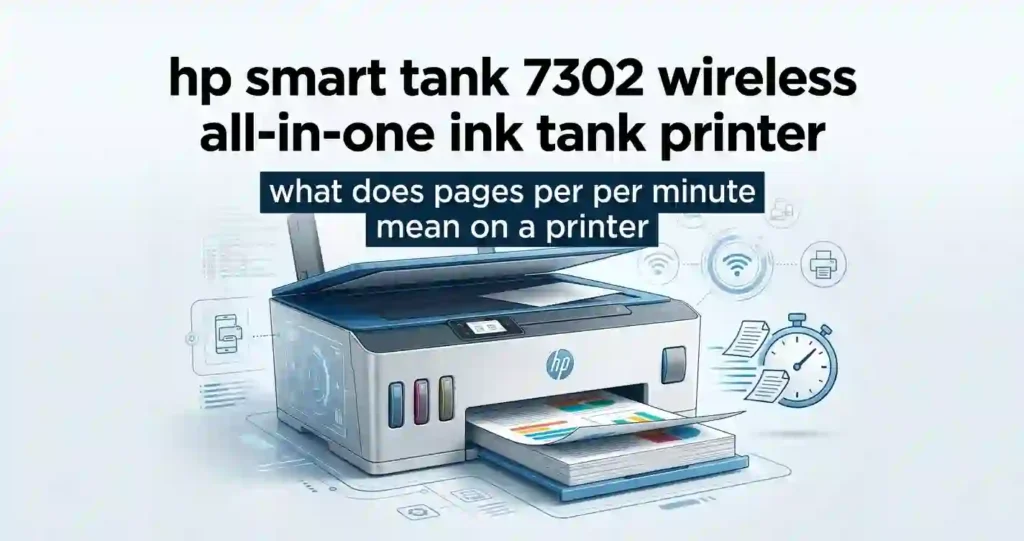
The HP Smart Tank 7302 wireless all-in-one ink tank printer aims to fix that problem. It prints, scans, and copies. It also uses refillable ink bottles instead of small cartridges.
Quick answer: The HP Smart Tank 7302 is a wireless all-in-one ink tank printer for home offices, families, and small businesses. It prints up to 15 pages per minute in black and 9 in color. HP lists yields of up to 6,000 black pages and 8,000 color pages from its bottles.
With cartridges, you buy small packs often. With a tank, you pour ink from a bottle into a large reservoir. That can cut long-term costs, as our guide to ink cartridge printers vs refillable tank printers explains.
This guide covers print volume, ink efficiency, wireless features, document quality, and ease of use. Not sure what you need yet? Start with what type of printer you need for home use. We checked HP product pages and major US retailer listings in October 2026 to build this guide.
HP Smart Tank 7302 Printer Overview and Key Specifications
This section covers what the printer does, how big it is, and what ships in the box.
Essential Features at a Glance
The Smart Tank 7302 is a multifunction printer. That means one device handles three jobs.
- Print: color and black documents, with automatic two-sided printing
- Scan: flatbed glass plus a 35-sheet automatic document feeder
- Copy: standalone copying from the control panel
- Connect: dual-band Wi-Fi, Wi-Fi Direct, Ethernet, and USB
- Control: smart-guided buttons that light up to show your next step
An all-in-one saves desk space and money. You skip the separate scanner and copier. Our comparison of an all-in-one printer vs a printer-only model shows when that trade makes sense.
It suits households, remote workers, students, and anyone who prints often. The 250-sheet input tray means fewer refills of paper.
Design, Size, and Everyday Usability
One US retailer lists the printer at about 14.3 x 16.8 x 9.5 inches. It weighs close to 17 pounds. That is a mid-size footprint for a desk or shelf.
Leave room around it. You need space to lift the scanner lid, load the feeder, and catch pages in the output tray. Our guide on where to place a printer at home offers simple layout tips.
Tight on space? Read what printer size is best for a small room before you buy.
HP says its spill-free bottles make refills cleaner. Still, always check the exact dimensions and paper capacity on the listing you plan to order.
What Comes in the Box?
Retail listings show the following items for the 7302:
- The printer
- HP 32XL black ink bottle or bottles
- HP 31 cyan, magenta, and yellow ink bottles
- Setup guide, reference guide, and regulatory flyer
- Power cord
Packages differ by seller. One warehouse club adds two extra black bottles for members. Another listing mentions printheads, so confirm that yours are included.
Initial setup means filling the tanks, installing the printheads, and following the on-screen prompts. Our walkthrough on how to set up a printer for the first time covers the basics.
Check the warranty too. HP lists a one-year limited hardware warranty on related Smart Tank models. Confirm the terms with your US retailer, and read our guide to printer warranty terms for beginners if the wording confuses you.
HP Smart Tank 7302 Specifications Table
Before you buy any ink tank printer, compare speed, paper handling, connectivity, and scanning. These numbers show whether it can handle US Letter documents, business paperwork, and some color printing. If terms like ISO or dpi feel new, our printer specifications explained for beginners guide helps.
| Specification | Details |
|---|---|
| Printer type | Wireless all-in-one ink tank printer |
| Functions | Print, scan, copy, automatic document feeder |
| Black print speed | Up to 15 pages per minute (ISO, A4) |
| Color print speed | Up to 9 pages per minute (ISO) |
| Automatic duplex printing | Yes |
| Wireless connectivity | Dual-band Wi-Fi and Wi-Fi Direct |
| Wired connectivity | USB and Ethernet |
| Input paper capacity | 250 sheets |
| Output paper capacity | 100 sheets |
| Automatic document feeder | 35 sheets |
| Black print resolution | Up to 1200 x 1200 rendered dpi |
| Color print resolution | Up to 4800 x 1200 optimized dpi |
| Borderless printing | Supported, up to 8.5 x 11 inches |
| Recommended monthly volume | 400 to 800 pages |
| Maximum monthly duty cycle | Up to 5,000 pages; not recommended as a sustained workload |
Source note: These figures follow HP’s published US specifications. ISO speeds and optimized resolution use different test methods. Do not compare them directly.
Duty Cycle Explained
Duty cycle is the most pages a printer can handle in one month. For this model, that is up to 5,000 pages. HP does not suggest hitting that number every month.
The recommended volume is the number to watch. It is 400 to 800 pages a month. Staying inside that range helps the printer last longer.
Wondering how much your own household prints? Read how much printing a home printer should handle. Offices can use our guide on how many pages an office printer can handle monthly.
Print Quality and Performance: What Can You Expect?
Real results depend on your documents, paper, and settings. Here is what to expect in each print mode.
Black-and-White Document Printing
The rated black resolution is up to 1200 x 1200 rendered dpi. Rated black speed is up to 15 pages per minute. Both numbers suit invoices, school assignments, and business reports.
Text should look sharp, even at small font sizes. Paper quality matters here. Cheap, thin paper can look fuzzy because ink spreads into the fibers.
Real speed varies. Complex pages, Wi-Fi connections, and high quality settings all slow the job down.
DPI in Plain Terms
DPI means dots per inch. More dots in each inch give finer detail. Past a point, though, your eyes cannot see the gain. Our article on printer resolution in simple terms explains this further.
Color Graphics and Photo Printing
The color resolution is up to 4800 x 1200 optimized dpi. That supports charts, flyers, slides, and everyday photos. Gradients and fine detail look best on inkjet photo paper.
Color accuracy depends on your screen, paper, and settings. If prints look off, read why printed photos look different from screens.
Set realistic goals. An office-focused tank printer can handle casual photos well. It may not match a dedicated photo printer. For best results, follow our tips on printing professional-looking photos at home. Then compare glossy vs matte photo paper before you buy a stack.
Print Speed for Home and Small Offices
HP rates the printer at up to 15 pages per minute in black and 9 in color. Those are ISO test numbers. Real jobs usually take longer because the test uses simple pages.
Draft mode can save time and ink. It works well for internal memos and rough copies. Switch back to normal for anything a client will see.
Ask one question. Do you print a few pages at a time, or full reports all day? For most homes and small offices, this speed is enough.
PPM in Plain Terms
PPM means pages per minute. It shows how many pages print in sixty seconds under test conditions. Our guide on what pages per minute means on a printer breaks it down. If your printer feels slow, read why inkjet printing is so slow.
Ink Tank System, Page Yield, and Printing Costs
Ink is where a tank printer earns its keep. This section covers how the system works and what it may cost per page.
How the Refillable Ink Tank System Works
A cartridge printer holds a small amount of ink in a plastic cartridge. A tank printer holds much more in built-in reservoirs. You refill them from bottles.
The tanks are separate for black and color. That makes it easy to see which one is running low. You refill only what you use.
Proper filling matters. Use the right ink, follow HP’s steps, and avoid overfilling. Routine use also matters, because ink that sits idle can dry out. Learn why in our guide on why an inkjet printer dries out. For the bigger picture, see refillable ink vs replacement cartridges and how inkjet printers work.
HP Smart Tank 7302 Ink Bottle Yield
HP advertises up to 6,000 black pages from the HP 32XL bottle. It lists up to 8,000 color pages from each HP 31 color bottle. These numbers come from lab tests with set conditions.
Your yield will differ. Heavy graphics use more ink than plain text. Frequent cleaning cycles use ink too.
Check what your package includes. Some retailers advertise “up to three years of ink,” while HP’s own pages for sibling models mention two. The claim depends on the package and your print habits.
Replacement ink matters as well. Read our guide on genuine vs compatible ink before you pick a brand. You can also browse the best refillable ink systems for home printing.
How to Estimate Cost Per Page
Use this formula:
Cost per page = cost of ink used ÷ number of pages printed
Add paper, printheads, and upkeep for the full picture. Our guides on inkjet printer running costs and the true cost of owning a printer show how.
A Simple Cost Example
One online seller lists an original HP 32XL black bottle near $29.69. It lists each HP 31 color bottle near $27.69. Prices change, so treat these as examples.
- Black page: $29.69 ÷ 6,000 pages is about half a cent.
- Color page: three bottles cost about $83.07. Divide by 8,000 pages for about one cent.
Compare that with a cartridge. Say a $37 cartridge prints 240 pages. That is about 15 cents a page. Real yields vary, so use your own numbers.
Want to cut costs further? Read how to reduce ink usage when printing and why printer ink costs so much.
HP Smart Tank 7302 Wireless Connectivity and Mobile Printing
You can connect by Wi-Fi, Wi-Fi Direct, Ethernet, or USB. Pick the one that fits your space.
Dual-Band Wi-Fi and Wi-Fi Direct
Dual-band Wi-Fi works on two radio bands. Most home routers offer both. Wi-Fi Direct lets a phone or laptop connect straight to the printer. No router is needed.
2.4 GHz and 5 GHz in Plain English
The 2.4 GHz band travels farther and passes through walls. The 5 GHz band is faster but has shorter range. Place the printer where it gets a steady signal.
Common Causes of Wireless Problems
Most issues come from a few sources:
- A weak signal at the printer’s location
- A new router or changed Wi-Fi password
- The wrong printer chosen on your device
Our guide on why a printer will not connect to Wi-Fi lists fixes. To join a network from scratch, follow how to connect a printer to Wi-Fi.
HP App, Apple AirPrint, and Android Printing
The HP Smart app helps you set up the printer, send print jobs, and scan documents. iPhone and iPad users can also print with Apple AirPrint. Android users can use Mopria or compatible print services.
Before you troubleshoot, check three things. permission your Conformation app . Confirm your operating system is current. Confirm both devices share one network.
Need help? Follow our steps for printing from a phone at home or connecting a printer to a smartphone. Families with many devices can read how to manage multiple devices with one printer.
USB and Ethernet Connections
A USB cable works well for one computer near the printer. It needs no Wi-Fi. It is also simple to set up.
Ethernet suits a shared office. A wired link stays steady and avoids signal drops. IT staff often prefer it for that reason.
Wired setups cost a little more in cable and placement effort. Wireless is more flexible. Our comparison of a network printer vs a USB printer for an office helps you choose. To share one device across a team, read how to share a printer across an office network. Laptop users can follow how to connect a printer to a laptop.
Scanning, Copying, and Automatic Document Feeding
The 7302 replaces a scanner and a copier. This section shows how each part works.
Flatbed Scanner and Automatic Document Feeder
The flatbed is the glass surface under the lid. Use it for single pages, receipts, photos, and fragile paper. The automatic document feeder takes a stack of up to 35 sheets.
Use the feeder for contracts, school forms, and long business files. Use the glass for anything thin, torn, or creased.
Feeding works best with flat, clean pages. Remove staples and straighten edges. Align the paper guides snugly.
Scanning to PDF and Image Formats
HP’s software typically saves scans as PDF or JPEG. Depending on the app or driver, you may also see PNG and TIFF. Check your version for the exact list.
Resolution changes file size and detail. Higher settings give sharper text but larger files. For plain documents, 200 to 300 dpi is usually enough.
Choose settings by task:
- Grayscale: text pages and forms
- Color: photos, charts, and signed pages
- Document mode: multi-page PDFs
Copying and Everyday Productivity
Copying works from the printer panel, even with your computer off. That is handy for quick tasks like ID copies or school forms.
HP lists a copy size range of 25 to 400 percent on related models. Check the listing for your unit. Quality settings let you trade speed for sharpness.
One device that scans and copies can replace two. See our comparison of a multifunction printer vs separate office devices to weigh the savings.
Paper Handling and Automatic Two-Sided Printing
Good paper handling prevents jams and waste. This section covers sizes, duplex printing, and fixes.
Paper Sizes and Media Compatibility
Common US sizes include Letter (8.5 x 11 inches) and Legal (8.5 x 14 inches). The printer also handles envelopes and supported photo paper sizes. Borderless printing goes up to 8.5 x 11 inches.
Paper weight and finish change both quality and feeding. Thick or glossy sheets need the right media setting. Wrong settings cause smears or jams.
Test a small pack first. Do not buy paper in bulk until you know it works. Our guide on which paper works best with inkjet printers helps you pick, and how to store printer paper at home keeps it flat and dry.
Automatic Duplex Printing
Duplex printing means the printer prints on both sides of a page. It cuts paper use and makes long documents easier to handle. Think reports, handbooks, and school packets.
Check your paper type and layout before you print. Margins and page order can shift in two-sided mode. A quick preview saves a wasted sheet.
For office paper tips, read how to choose paper for office documents.
Paper Jams and Feed Problems
Most jams have simple causes:
- Overloaded trays
- Curled or damp paper
- Paper guides set too wide or too tight
To clear a jam safely, turn the printer off. Follow HP’s on-screen or manual instructions. Pull the sheet gently in the direction of travel. Never yank it.
If jams keep happening, clean the rollers or contact HP support. Our list of common inkjet printer problems and their causes and our guide to common home printer problems can help you spot the cause.
HP Smart Tank 7302 Setup: Step-by-Step Guide
Setup takes about as long as a TV show. Go slowly, and follow the prompts.
Unboxing and Initial Ink Setup
- Remove all tape and packing material from the printer.
- Place it on a flat, stable surface near power and Wi-Fi.
- Connect the power cord and turn the printer on.
- Fill each tank with the matching ink bottle. Match the colors.
- Install the printheads when the screen asks.
- Wait while the printer primes the ink.
Handle bottles with care and keep them upright. Wipe spills right away. Our full guide on setting up a printer for the first time covers the same flow in more depth.
Connect the Printer to Wi-Fi
- Install the HP Smart app on your phone or computer.
- Open the app and tap to add a printer.
- Choose your home or office network.
- Enter the Wi-Fi password.
- Print a test page.
Keep the phone and printer on the same network during setup. The test page checks both your connection and basic print quality. If it fails, see how to reconnect an offline printer.
Install Printer Software and Drivers
Get software only from HP’s official support site. Search for your exact model number. Pick the right version for Windows or macOS.
After installing, choose the printer and set it as your default. Then print a test page. Check for firmware and software updates if you hit trouble later.
Not sure which download you need? Our guide on how to install printer drivers correctly walks through it.
HP Smart Tank 7302 Maintenance and Troubleshooting
A little care keeps a tank printer running well. These tips cover the most common issues.
Monitor Ink Levels and Refill Correctly
Look at the clear tank windows to see levels. The HP app and printer display can help too. Learn more in our guide on how to check printer ink levels correctly.
Refill before a tank runs fully empty. Use the correct HP 31 or HP 32XL bottle. Stop when the bottle empties or the tank is full. Do not force extra ink in.
Keep spare bottles on hand if you print a lot. Seeing an empty warning when tanks are not empty? Read why a printer says ink is empty when it is not.
Fix Common Print Quality Issues
Start with the basics: ink levels, paper type, and printhead status. Then use the printer’s cleaning and alignment tools.
Avoid repeated cleaning cycles. Each one uses ink. Follow HP’s guidance instead.
Faded Text and Missing Colors
Low ink, wrong paper settings, or a clogged printhead are common causes. Check ink first. Then run one cleaning cycle and print a test page. If pages come out empty, read why an inkjet printer prints blank pages.
Streaks and Banding
Lines usually point to dirty or misaligned printheads. Run alignment, then one cleaning. Our guide on why inkjet prints have lines explains each cause. For the part behind it, see the inkjet printhead guide for beginners.
Resolve Offline Printer and Wi-Fi Errors
Check power, connection status, and the selected printer. Clear the print queue on your computer. Restart the printer and your router if needed.
Quick Offline Fix Steps
- Turn the printer off, then on.
- Confirm it shows a Wi-Fi connection.
- Select the correct printer on your device.
- Clear stuck jobs from the print queue.
- Reconnect using the HP app if the issue stays.
Still offline? A driver update or fresh wireless setup may help. Read why your printer keeps going offline and what to do when a printer is not showing on your computer.
HP Smart Tank 7302 Pros and Cons
No printer fits everyone. Here is the honest balance.
Key Advantages
- Low running costs: refillable tanks and high advertised yields can offer value for regular printers
- Everyday productivity: automatic duplex, a 35-sheet feeder, and a 250-sheet tray
- Flexible connections: Wi-Fi, Wi-Fi Direct, Ethernet, and mobile printing
- Three functions in one: print, scan, and copy
Potential Drawbacks
The upfront price can be higher than a basic cartridge printer. Retail prices for the related Smart Tank 7301 have ranged from about $300 to $450 in US listings. Look for sales at Amazon, Best Buy, Staples, and Costco.
Inkjets also need regular use. Printing only a few pages a month can lead to dried ink. See how often an inkjet printer should be used for a simple routine.
Heavy photo printing or big office workloads may need a more specialized machine. Our article on why cheap printers can cost more over time shows why upfront price is only part of the story.
HP Smart Tank 7302 vs. Other Printer Types
Purchase price is only one piece of the cost. This comparison weighs ink, frequency, quality, and upkeep.
| Factor | HP Smart Tank 7302 | Basic cartridge inkjet | Monochrome laser |
|---|---|---|---|
| Ink or toner system | Refillable ink tanks | Replaceable ink cartridges | Toner cartridge |
| Best use case | Regular color and document printing | Light, occasional printing | Frequent black-and-white documents |
| Color printing | Yes | Usually yes | Usually no |
| Running costs | Potentially low with regular use | Can be higher per page | Often economical for text |
| Two-sided printing | Automatic | Depends on model | Depends on model |
| Scanning and copying | Yes | Depends on model | Depends on model |
| Photo printing | Casual photos and color graphics | Varies by model | Not suitable for color photos on monochrome models |
Which Printer Type Offers Better Value?
Monthly page volume drives total cost. High volume favors tank printers or lasers. Low volume favors a cheap cartridge printer.
For color needs, a tank printer usually wins over a monochrome laser. For black-only office work, a laser can be simpler and cleaner. Our guide to laser printers vs inkjets for everyday documents goes deeper.
Calculate yearly supply costs before you decide. Do not shop by sticker price alone. Use how to choose a printer for your monthly print volume and cheap printer vs low-cost printing to run the numbers.
Who Should Buy the HP Smart Tank 7302?
It fits people who print often and want low ink costs. Here is how it matches different users.
Best for Home Offices and Small Businesses
Think invoices, reports, worksheets, shipping labels, and color slides. The feeder and duplex printing cut repetitive work. Having print, scan, and copy in one box also saves space.
Shopping for a team? Read how to choose a printer for a small office. You can also compare picks in our best multifunction printers for small offices.
Is It Suitable for Students and Families?
Yes, for steady printing needs. School assignments, forms, study guides, and the odd photo are all fine. High-yield ink can help families that print every week.
Check desk space, Wi-Fi coverage, and expected volume first. Our picks for the best refillable inkjet printers for families and best inkjet printers for students give useful context.
Who Should Consider Another Printer?
Choose a basic cartridge printer if you print rarely and want a low price. Our guide on what printer suits occasional printing covers that case.
Pick a monochrome laser if you mostly print black-and-white pages. See monochrome vs colour laser printers.
Want top photo quality? A dedicated model is better. Start with how to choose a printer for photo printing.
HP Smart Tank 7302 Buying Checklist
Use this list before you click Buy. It takes five minutes and can save real money.
What to Check Before Purchasing
- Price: compare the current US price, plus warranty and return policy
- Model number: confirm it is the 7302 (HP model 28B71A)
- Ink in the box: count the bottles and note any bonus bottles
- System support: check your Windows or macOS version
- Connection needs: Wi-Fi, USB, or Ethernet
- Refill costs: look up HP 31 and HP 32XL bottle prices
Budget matters too. Read how much you should spend on a printer and our list of printer buying mistakes and how to avoid them.
How to Find the Best Deal
Compare Amazon, Best Buy, Staples, Costco, Office Depot, and HP’s own store. Sales happen often, so check more than one.
Make sure each listing includes the same ink and accessories. A cheaper listing may have fewer bottles. Count total ownership cost, including ink and paper, not only the discount.
Also plan your ink supply. Our tips on finding low-cost printer consumables can lower yearly spending. If you compare ink types, see original vs compatible printer cartridges.
Frequently Asked Questions (FAQ)
1. Is the HP Smart Tank 7302 a wireless printer?
Yes. It supports dual-band Wi-Fi and Wi-Fi Direct, plus wired options. Wireless results depend on your network, distance, and room layout.
2. Does the HP Smart Tank 7302 print, scan, and copy?
Yes. It combines all three tasks in one device. It also has a flatbed scanner and a 35-sheet automatic document feeder.
3. How many pages can the HP Smart Tank 7302 print per ink refill?
HP advertises up to 6,000 black pages and up to 8,000 color pages under set test conditions. Real yields vary with coverage, settings, upkeep, and habits.
4. Does the HP Smart Tank 7302 support automatic double-sided printing?
Yes. Automatic duplex printing prints both sides of compatible documents. It helps cut paper use on longer reports and everyday files.
5. Can I print from my phone using the HP Smart Tank 7302?
Yes. You can use the HP app, Apple AirPrint, Mopria, or compatible Android print services. Exact steps depend on your phone, system version, and network.
6. Is the HP Smart Tank 7302 good for photo printing?
It handles color printing on compatible photo paper, including borderless prints up to 8.5 x 11 inches. Serious photographers should compare it with dedicated photo printers.
7. What is the recommended monthly print volume?
HP lists 400 to 800 pages per month. The maximum duty cycle is up to 5,000 pages, but HP does not recommend that as a steady load.
8. How do I connect the HP Smart Tank 7302 to Wi-Fi?
Use the HP app and follow its wireless setup steps. If setup fails, check your network, restart the printer, and follow HP’s connection help.
9. Is the HP Smart Tank 7302 cheaper to run than a cartridge printer?
It may offer lower ink costs per page for regular printers. Compare current ink prices, real yields, upkeep, and purchase price first. Our guide on which home printer saves the most money on ink can help.
10. How do I fix faded prints or missing colors?
Check ink levels, paper settings, and printhead status first. Then run HP’s cleaning and alignment tools, and repeat only if needed.
Conclusion: Is the HP Smart Tank 7302 Worth Buying?
The HP Smart Tank 7302 offers refillable tanks, three functions in one box, automatic duplex printing, a 35-sheet feeder, and flexible connections. Those strengths suit steady, everyday printing.
Its value depends on four things: monthly volume, color needs, upfront cost, and long-term ink spending. Do the math with real prices before you buy.
Our recommendation: Consider the HP Smart Tank 7302 if you want a versatile wireless printer for regular home-office or small-business use. If you print only a few pages a month, a simpler printer may serve you better.
Still comparing options? Browse our best printer for family use guide, or read is an inkjet printer worth buying for home use to confirm the fit.




