
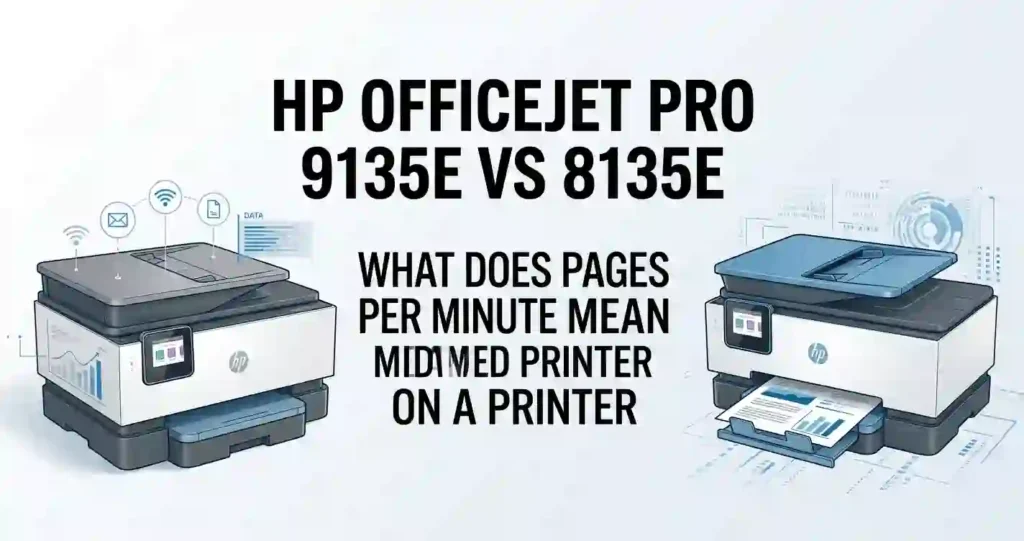
HP OfficeJet Pro 9135e vs 8135e feels harder than it should. Both are color inkjet all-in-ones. Both print, scan, copy, and fax. The wrong pick can waste your budget or slow your day.
Here is the short answer. The 9135e is the faster, bigger, more productive machine. The 8135e is the simpler, cheaper one for lighter work. The gap shows up in speed, paper trays, scanning, ink, and monthly volume.
Quick answer: Choose the 9135e if you print often, scan stacks of two-sided pages, or share the printer with a team. Choose the 8135e if you print light to moderate volumes at a home office and want a lower price.
This guide uses HP’s published specs and US retailer listings. We did not run lab tests, and prices change, so confirm details on HP.com before you buy. You can see how we check facts in our editorial policy, review policy, and fact-checking policy.
New to printer jargon? Start with printer specifications explained for beginners. Then use the table below.
Quick Comparison: 9135e vs 8135e Side by Side
Before choosing between these two office printers, compare the specs that shape daily work and ink costs. The table uses manufacturer figures from HP product pages and US retailer listings.
Want the neighboring models too? See our HP OfficeJet Pro 8125e vs 8135e comparison and our HP 9125e vs 9135e breakdown.
Full Specification Table
| Feature | HP OfficeJet Pro 9135e | HP OfficeJet Pro 8135e |
|---|---|---|
| Printer type | Color inkjet all-in-one | Color inkjet all-in-one |
| Core functions | Print, scan, copy, fax | Print, scan, copy, fax |
| Print speed (ISO) | Up to 25 ppm black, 20 ppm color | Up to 20 ppm black, 10 ppm color |
| Draft speed | Up to 39 ppm | Up to 29 ppm black, 25 ppm color |
| Paper input | Two 250-sheet trays (500 total) | One 225-sheet tray |
| Output tray | 100 sheets | 60 sheets |
| Automatic document feeder | 35 sheets, single-pass two-sided scanning | 35 sheets, one-sided scanning |
| Two-sided printing | Automatic | Automatic |
| Touchscreen | 4.3 inches | 2.7 inches |
| Recommended monthly volume | Up to 2,000 pages | Up to 800 pages |
| Maximum duty cycle | Up to 30,000 pages | Up to 20,000 pages |
| Connectivity | Dual-band Wi-Fi, Ethernet, USB, Wi-Fi Direct | Dual-band Wi-Fi, Ethernet, USB, Wi-Fi Direct |
| Ink family | HP 936 and 936e | HP 923 and 923e |
| Rated yield, black | About 1,250 pages | 500 pages |
| Rated yield, each color | About 800 pages | 400 pages |
| Best-fit user | Busy offices, shared use, heavy scanning | Home offices, light to moderate volume |
Reading These Numbers Correctly
Five rows really separate these models: speed, paper trays, scanner, screen, and monthly volume. Everything else is close.
- Speed: The 9135e is rated at 25 ppm black and 20 ppm color. The 8135e is rated at 20 and 10.
- Paper: 500 sheets versus 225 sheets.
- Scanning: Single-pass two-sided versus one-sided.
- Screen and volume: A 4.3-inch screen and up to 2,000 recommended pages versus 2.7 inches and 800 pages.
Advertised speeds are lab ratings. Real jobs run slower because of document complexity, print mode, and Wi-Fi strength. Our guide on why inkjet printing is so slow explains the causes.
Takeaway: The 9135e fits frequent scanning and higher-volume work. The 8135e fits everyday home-office printing. Unsure which extras matter? Read which printer features are worth paying extra for.
Key Differences Between the HP 9135e and 8135e
HP positions the 9135e for busier offices. The 8135e is aimed at everyday home-office work. The clearest paper gap is simple: two 250-sheet trays against one 225-sheet tray.
Do not treat these models as interchangeable. Workflow, screen size, and scanner design all differ. For a wider checklist, see what printer features actually matter.
Which Printer Offers Better Productivity?
Yes, the 9135e is faster. HP rates it at up to 25 ppm in black and 20 ppm in color. The 8135e is rated at up to 20 ppm black and 10 ppm color.
PPM means pages per minute. It counts how many pages a printer finishes in one minute during a standard ISO test. Our guide on what pages per minute means on a printer explains the test.
Color is where the gap grows. At rated speed, a 100-page color job takes about 5 minutes on the 9135e and about 10 on the 8135e. Black text takes about 4 minutes versus 5.
Speed matters for invoices, contracts, reports, and school packets. It matters most when several people print at once.
How Do Their Paper-Handling Features Compare?
The 9135e holds 500 sheets across two 250-sheet trays. The 8135e holds 225 sheets in one tray. With two trays, you can keep US Letter in one and Legal or letterhead in the other.
Both print on both sides automatically. Automatic duplex printing flips each page for you. Two-sided jobs use half the sheets, which cuts paper cost on long reports.
Output trays differ too. The 9135e holds 100 sheets and the 8135e holds 60. Both feeders handle Legal size (8.5 x 14 inches). The 9135e also lists up to 30 envelopes.
Check the exact US model before ordering. Supported sizes, envelopes, and specialty media can vary by region. Our guides on what paper works best with inkjet printers and how to choose paper for office documents help you pick the right stock.
Which Model Has the Better Scanning Workflow?
Both models have a 35-sheet automatic document feeder (ADF). This is where they split. The 9135e uses a single-pass feeder that scans both sides of a page in one trip. HP lists the 8135e with a one-sided ADF.
A double-sided contract is easy on the 9135e. On the 8135e, you flip each page by hand or use the flatbed glass. For a stack of 30 two-sided pages, that is real time.
The 9135e also has a larger 4.3-inch touchscreen, which makes scan menus easier to read. Both send scans through the HP app.
If you digitize contracts or double-sided paperwork often, put scanning ahead of print speed. Our best multifunction printer for small offices guide shows other strong scanners. Not sure you need an all-in-one? Read all-in-one printer vs printer only.
Print Quality for Text, Graphics, and Photos
Both printers use HP thermal inkjet technology with four cartridges. Expect similar results for text, charts, slides, and occasional photos.
DPI means dots per inch. More dots can mean finer detail. Yet resolution alone does not guarantee better output. Paper, print mode, ink condition, and driver settings matter just as much. Our printer resolution explained in simple terms guide covers the rest.
Professional Documents: Text, Charts, and Logos
Both list up to 1200 x 1200 dpi in black. Small fonts in spreadsheets stay readable on plain office paper. Charts, logos, and slides print with even color.
Do a real test before you commit. Print your own hardest file, such as a dense spreadsheet with a logo. Compare the sample pages side by side.
Use Normal mode for most work. Use Draft to save ink and Best for client proposals. To cut waste, try how to reduce ink usage when printing.
Install the right driver too. Our walkthrough on how to install printer drivers correctly prevents many quality complaints.
Can Either Printer Handle Photo Printing?
Yes, in a limited way. Both list borderless printing on supported paper. Both list up to 4800 x 1200 optimized dpi in color on HP photo paper.
Glossy photo paper, high-resolution images, and the correct paper-type setting make a big difference. These are office printers, not photo printers.
If photos are your main job, read how to choose a printer for photo printing. You can also see our best photo printer for home use in 2026 and best budget printer for high-quality photos. A dedicated photo printer will beat either model.
Ink Cartridges, Page Yield, and Running Costs
Ink drives long-term cost more than the sticker price. Here is the first catch. The 9135e uses the HP 936 family. The 8135e uses HP 923 in the US. UK and EU listings show HP 924, so never copy a part number from a foreign site.
Both families come in standard and high-yield versions. The 936 black is rated for about 1,250 pages, and the 936e black for about 2,500. The 923 black is rated for 500 pages. The high-yield 923e black is rated for about 1,000.
Total cost of ownership means printer price plus ink, paper, upkeep, and any subscription. Our guide on inkjet printer running costs explained walks through each part. Our guide on how to calculate the true cost of owning a printer adds a worksheet.
Always confirm the exact model first. See how to check if a printer cartridge is compatible.
Lower Cost per Page: Which Printer Wins?
Neither printer is a proven cost winner until you compare current cartridge prices. What we can say is that the 936 cartridges are rated for far more pages. A standard 936 black is rated for about 1,250 pages. A standard 923 black is rated for 500.
Black documents cost less than color ones. Coverage, cleaning cycles, and habits all change real yield. Curious why? Read why inkjet printers use so much ink.
Cost Per Page Formula
Cost per page equals cartridge price divided by rated page yield.
Example: a $32.99 HP 923 black cartridge divided by 500 pages is about 6.6 cents per page. A 936 black cartridge only needs to cost under about $82 to match that. Check today’s price at Amazon, Best Buy, or Staples.
Sample Monthly Costs
These numbers use example prices, not quotes. We used $32.99 for 923 black, $18.99 for each 923 color, $49.99 for 936 black, and $29.99 for each 936 color. The 936 prices are placeholders. A color page assumes all three color cartridges.
| Monthly use | 8135e (HP 923) | 9135e (HP 936) |
|---|---|---|
| Light: 50 black pages | About $3.30 | About $2.00 |
| Moderate: 150 black, 50 color | About $17 | About $12 |
| Heavy: 500 black, 200 color | About $61 | About $42 |
Swap in current prices before you decide. For a fuller method, see how to compare office printer running costs.
Is HP Instant Ink Worth Considering?
HP Instant Ink is a subscription. You pay by pages per month, not by cartridge. HP ships ink before you run out. Both printers are listed as eligible, and many bundles include a free trial of about three months.
Plans, page allowances, rollover terms, and prices change. Read HP’s current US terms before you enroll. Fees continue until you cancel.
Compare the plan fee with buying cartridges for your real monthly pages. If you print very little, cartridges may cost less. If you print steadily, use the monthly math above.
What HP+ Requires
Both printers are HP+ enabled. HP+ requires an HP account, an ongoing internet connection, and Original HP ink for the life of the printer.
Dynamic security can also block cartridges with non-HP chips after a firmware update. Read original vs compatible printer cartridges and genuine vs compatible ink before you try third-party ink. If a new cartridge fails, see why a printer rejects new cartridges.
Wireless Connectivity and Mobile Printing
Connectivity is how a printer links to your devices. Both printers offer dual-band Wi-Fi (2.4 GHz and 5 GHz), Ethernet, and USB.
Both print from Windows PCs, Macs, iPhones, and Android phones. You can use the HP app, Apple AirPrint, Mopria, and Wi-Fi Direct. Wi-Fi Direct lets a phone connect straight to the printer without a router.
Keep firmware updated and use a strong Wi-Fi password.
Need phone help? See how to print from a phone at home and how to connect a printer to a smartphone.
How Easy Is Each Printer to Set Up?
Setup is nearly identical on both. Allow about 20 minutes and keep your Wi-Fi password handy. The touchscreen and the HP app guide each step. The 9135e’s larger screen makes menus easier to read.
Setup Steps
- Remove all tape, plug in the power cord, and turn the printer on.
- Install the setup cartridges.
- Load US Letter paper (8.5 x 11 inches).
- Follow the touchscreen prompts and decide on HP+ here.
- Join your Wi-Fi network, or plug in Ethernet or USB.
- Install the HP app or driver from HP’s official site.
- Print a test page, then test scanning and copying.
First time? Read how to set up a printer for the first time, how to connect a printer to Wi-Fi, and our 123.hp.com setup guide.
Fixing Wi-Fi Setup and Offline Problems
- Move the printer closer to the router.
- Try the 2.4 GHz band if 5 GHz fails.
- Re-enter the password carefully.
- Restart the printer, the router, and the computer, in that order.
- Confirm all devices sit on the same network.
- Test with a USB cable to rule out the network.
Still stuck? See why a printer won’t connect to Wi-Fi, why a printer keeps going offline, and how to reconnect an offline printer. If your computer cannot see it, read printer not showing on computer. Many steps in our HP OfficeJet Pro 9125e Wi-Fi fix guide also apply to this printer family.
Shared Office Use: Wired or Wireless?
Use Ethernet for a steady wired link when several people print. Use Wi-Fi when placement matters more. A shared network printer beats a USB printer once more than one or two people need it.
The 9135e suits shared use better. It has a second tray, faster speeds, and a larger screen. Compare your options in network printer vs USB printer for an office. Then learn how to share a printer across an office network.
Protect sensitive pages too. Read office printer security basics and our guide to the best secure printer for business documents. Firmware updates, strong passwords, and limited user access all help.
Price, Warranty, and Long-Term Value
Compare current US prices at Amazon, Best Buy, Staples, Office Depot, and HP.com. Recent listings showed the 8135e from about $160 to $225. Our HP 9125e vs 9135e guide found the 9135e from about $300 to $430. Sale prices move often.
HP lists a one-year limited warranty on the 8135e, with an option to extend to two years if you accept HP+. Confirm US terms for either model. Our printer warranty terms explained for beginners guide helps you read the fine print.
The lowest upfront price may not give the best long-term value. Read why cheap printers can cost more over time and how much you should spend on a printer. Factor in ink, paper, monthly output, and the time you save.
When Is the HP OfficeJet Pro 9135e Worth the Extra Cost?
It pays off when you print or scan often. You get faster speeds, a second tray, a bigger screen, and single-pass two-sided scanning.
Think in time saved. At rated speed, 200 color pages a month take about 10 minutes on the 9135e and about 20 on the 8135e. Add fewer paper reloads and faster scanning of two-sided stacks.
Now compare the real price gap with the features you will use daily. If you scan stacks weekly, the premium is easy to justify. If you print a few pages a week, it is wasted money.
Match volume to model with how to choose a printer for your monthly print volume.
When Is the HP OfficeJet Pro 8135e the Better Buy?
Pick it for a home office or small team with moderate volumes and simple paper needs. You still get automatic duplex, a 35-sheet ADF, fax, dual-band Wi-Fi, and Ethernet.
Do not pay for workflow extras you will not use. Check whether the 800-page recommended monthly volume covers you. See how many pages an office printer can handle monthly.
Most people print less than they expect. Our research on how often people actually use home printers shows why. Choose by total ownership cost, not by the discount price alone.
Pros and Cons of the 9135e and 8135e
Both printers are solid office inkjets. Their pros and cons come down to speed, paper handling, scanning, and price. Use the lists below to match each one to your needs.
The HP OfficeJet Pro 9135e: Pros and Cons
Pros:
- Faster rated speeds: 25 ppm black and 20 ppm color
- Two 250-sheet trays for 500 sheets
- Single-pass two-sided scanning
- 4.3-inch touchscreen
- Up to 2,000 recommended pages a month
Cons:
- Higher upfront cost
- Extra features may go unused by occasional printers
- Larger machine, so measure your desk space
- Ink and plan costs still apply
Ask whether the productivity gains justify the cost. For lifespan expectations, see how long an inkjet printer usually lasts.
The HP OfficeJet Pro 8135e: Pros and Cons
Pros:
- Lower price
- Automatic duplex printing
- 35-sheet ADF and built-in fax
- Dual-band Wi-Fi, Ethernet, and USB
- Compact at about 18.1 x 13.3 x 9.2 inches, per our 8125e vs 8135e guide
Cons:
- Color speed is rated at only 10 ppm
- One 225-sheet tray
- One-sided ADF scanning
- Smaller 2.7-inch screen
- HP+ ink limits
Light and moderate users can live with these limits. You avoid paying for features you would never use.
Buying Advice: Which Printer Fits You?
Match the printer to your volume, paper needs, desk space, and budget. Pick features that solve a real workflow problem. Do not choose by model number alone.
| Your situation | Better pick | Why |
|---|---|---|
| Solo remote worker, light printing | 8135e | Lower price and enough speed |
| Small team sharing one printer | 9135e | Two trays, faster, bigger screen |
| Frequent two-sided scanning | 9135e | Single-pass two-sided feeder |
| Mostly black text, under 800 pages a month | 8135e | Within the recommended volume |
| Mixed paper (Letter, Legal, letterhead) | 9135e | Second tray |
| Tight budget | 8135e | Lower upfront price |
Best for Small Businesses
Evaluate the 9135e if your office prints often, needs more paper capacity, or scans every day. Think about how many people print and what lost time costs you. Constant paper refills add up.
Check whether its features match your real document workflow. Read how to choose a printer for a small business and should a small business buy or lease a printer.
Downtime hurts too. See printer downtime problems in small businesses.
Best for Home Offices and Remote Workers
Consider the 8135e for everyday invoices, school assignments, forms, and occasional color documents. Compare its price and ongoing ink costs against your monthly printing.
Choose the 9135e only if faster output or its extra workflow features would give you measurable benefits.
See the best home printer for school projects. Still unsure about the category? Read what type of printer you need for home use. If you print rarely, the best inkjet printer for infrequent use may suit you better.
High-Volume Printing: Who Should Choose What?
Compare the recommended monthly volume, not just the maximum. That means up to 2,000 pages for the 9135e and up to 800 for the 8135e.
Duty Cycle in Plain English
Duty cycle is the most pages a printer can handle in one month. It is a ceiling, not a target. The 9135e lists up to 30,000 pages. The 8135e lists up to 20,000.
Review ink yields, paper capacity, speed, and your black-versus-color mix. If you print mostly black text above 2,000 pages a month, a laser may cost less. See the best laser printer for high volume printing and the best printer for high-volume office printing. For cost-focused picks, read the best office printer for low running costs.
Choosing Between the HP 9135e and 8135e: A Simple Guide
Use these steps to turn the specs into a decision.
- Count your monthly pages and note your black-versus-color mix.
- Decide how often you scan two-sided documents.
- Check how many paper types you load each week.
- Estimate monthly ink and paper costs with our guide to calculating office printing costs.
- Verify model numbers. US listings show 404M0A for the 9135e and 40Q35A for the 8135e.
- Compare final prices, warranty terms, and any HP+ rules.
Quick Buying Checklist
- Confirm the printer covers your print, scan, copy, and fax needs.
- Check cartridge prices, rated yields, and HP+ or subscription terms.
- Verify wireless needs, paper capacity, and desk space.
- Measure the space. See what printer size is best for a small room.
Frequently Asked Questions
Here are quick answers to the questions buyers ask most.
What Is the Main Difference Between the HP OfficeJet Pro 9135e and 8135e?
The 9135e is faster, holds more paper, and scans both sides of a page in one pass. HP rates it at up to 25 ppm black and 20 ppm color, against 20 and 10 for the 8135e. It also has two 250-sheet trays and a 4.3-inch screen. The 8135e costs less.
Is the HP OfficeJet Pro 9135e Faster Than the 8135e?
Yes. HP lists up to 25 ppm black and 20 ppm color for the 9135e. The 8135e is rated at up to 20 ppm black and 10 ppm color. Color jobs show the biggest gap. Real speed still depends on print mode, document complexity, and your network.
Do Both Printers Support Automatic Two-Sided Printing?
Yes. Both print on both sides automatically, which cuts paper use on long reports. Scanning differs. The 9135e scans both sides through its feeder, while HP lists the 8135e with a one-sided feeder.
Does the 9135e or the 8135e Cost Less to Run?
Neither wins until you compare current prices. The 9135e uses HP 936 cartridges rated for about 1,250 black pages and 800 per color. The 8135e uses HP 923, rated for 500 and 400. Divide each price by its yield, then match your black and color mix.
Can the 9135e and 8135e Print Wirelessly From a Phone?
Yes. Both offer dual-band Wi-Fi and work with the HP app, AirPrint, Mopria, and Wi-Fi Direct. Ethernet and USB are also available. Router settings, firmware, and device compatibility can affect setup.
Are These Printers Suitable for Small Businesses?
Yes. Both print, scan, copy, and fax. The 8135e suits light to moderate loads of up to 800 pages a month. The 9135e suits busier teams, with up to 2,000 recommended pages and a second tray.
Do Both Printers Have an Automatic Document Feeder?
Yes. Both have a 35-sheet ADF that scans or copies multipage documents without placing each sheet by hand. It accepts Legal-size originals (8.5 x 14 inches). The 9135e feeder also scans both sides in one pass.
Does the 9135e Support Duplex Scanning?
Yes. HP lists two-sided scanning on the 9135e through a single-pass feeder. That helps with contracts and double-sided forms. Confirm details for model 404M0A on the US product page before you buy.
Are Both Printers Compatible With HP Instant Ink?
Yes. Both are listed as HP Instant Ink eligible and HP+ enabled. Plans, page allowances, and prices change, so read HP’s current terms. HP+ requires an HP account, an internet connection, and Original HP ink for the life of the printer.
Overall, Is the 9135e or the 8135e the Better Pick?
Pick the 9135e if you print often, scan two-sided stacks, or share the machine. Pick the 8135e if your workload is light to moderate and you want to pay less. If the sale price gap is small, the 9135e is the safer long-term choice.
Conclusion: HP OfficeJet Pro 9135e vs 8135e
The HP OfficeJet Pro 9135e vs 8135e choice comes down to workload. Both print, scan, copy, fax, and print on both sides. Both are tied to HP’s ink rules.
The 9135e adds faster speeds, a second tray, a bigger screen, single-pass two-sided scanning, and a higher monthly volume. The 8135e keeps the price down for lighter work.
Choose the 9135e for demanding office workflows. Choose the 8135e for routine home-office printing. Before you buy, compare current prices, cartridge costs, and warranty terms.
For more savings ideas, read our best home printer with cheap running costs guide. If an old machine is holding you back, see when a business should replace an old printer.




